Note
Access to this page requires authorization. You can try signing in or changing directories.
Access to this page requires authorization. You can try changing directories.
This playbook (guide) helps partners create offers and transact on Microsoft Marketplace. It recommends best practices, helps with onboarding, and guides you through Marketplace. With the new AI Apps and Agents category in Marketplace, partners can list AI apps and agents to help customers find, try, and buy tailored AI solutions. Accelerate your app journey with App Advisor and ask Marketplace questions through the Partner Center AI assistant.
Partners building and publishing AI solutions, including agents, can find technical guidance by offer and deployment type here through Publishing AI agents to the Microsoft Marketplace.
With the new AI Apps and Agents category in Microsoft Marketplace, partners can list AI apps and agents to help customers find, try, and buy tailored AI solutions.
| Primary Category | AI Apps and Agents | Agents AI Apps Azure AI Foundry Services Tools and Connectors |
|---|---|---|
| Secondary Category | Machine Learning | Automated ML Data Labeling Data Preparation Knowledge Mining ML Operations ML Service |
Tip
For an interactive, step by step guide on choosing the right offer type use the App Advisor
Important terms to know
- Partner/ISV: Independent Software Vendor; The entity looking to publish or with a transactable offer on Microsoft Marketplace, sometimes referred to as software publisher.
- Customer: The entity looking to purchase a transactable offer from the Microsoft Marketplace.
- MACC Benefit Eligible: Some customers signed a Microsoft Azure Consumption Commitment (MACC). Eligible Microsoft Marketplace offers contribute towards decrementing the customer's MACC commitment. See Take advantage of your Microsoft Azure Consumption Commitment (MACC) benefit - Microsoft Marketplace.
- Solution / Offer: Products, services, or a combination of both provided to customers.
- Partner Center: Streamlines several business processes to make it easier for Microsoft partners to manage their relationship with Microsoft and their customers. Partner Center gives you access to the tools you need to get work done including referrals, insights, partner payout, and benefits.
- Co-sell and IP Co-sell: Co-selling is any collaborative engagement between Microsoft and its partner ecosystem. Offers must meet certain requirements to be Co-sell eligible. IP Co-sell brings more partner benefits including MACC eligibility.
Partner benefits
When you publish your transactable offers on the Microsoft Marketplace, you unlock a set of marketing and sales benefits.
- Rewards: As you grow through the commercial Microsoft Marketplace, you unlock benefits based on your engagement and sales. The more you grow, the more benefits unlock.
- Operational support: When you apply Microsoft's billing and tax services, you can focus on building great solutions while Microsoft handles the administrative aspects.
- Access to customers: Simply creating a listing in the Microsoft Marketplace gives you access to over 4 million active visitors per month across 140+ geographies.
- Scale: You can scale your sales force through Microsoft field sellers and partner-to-partner co-sell.
Details about these benefits can be found later in this article in Step 13.
Partner journey on Microsoft Marketplace
This section describes your journey through the Microsoft Marketplace ecosystem.
Key partner functions help ensure the solution is well-designed, compliant, market-ready, financially viable, and secure. Business roles include oversight (Solution Business Owner), legal compliance, marketing, financial management, and account administration in Partner Center and Azure. Technical roles focus on architecture, development, deployment, and cybersecurity to ensure the solution is scalable, secure, and operationally sound.
Start your partner journey on the Microsoft Marketplace by using the steps shown in the following diagram. Details and supporting links are in the sections that follow the diagram.
Start your partner journey on Microsoft Marketplace by using the steps shown in the following diagram. Details and supporting links are in the sections that follow the diagram.
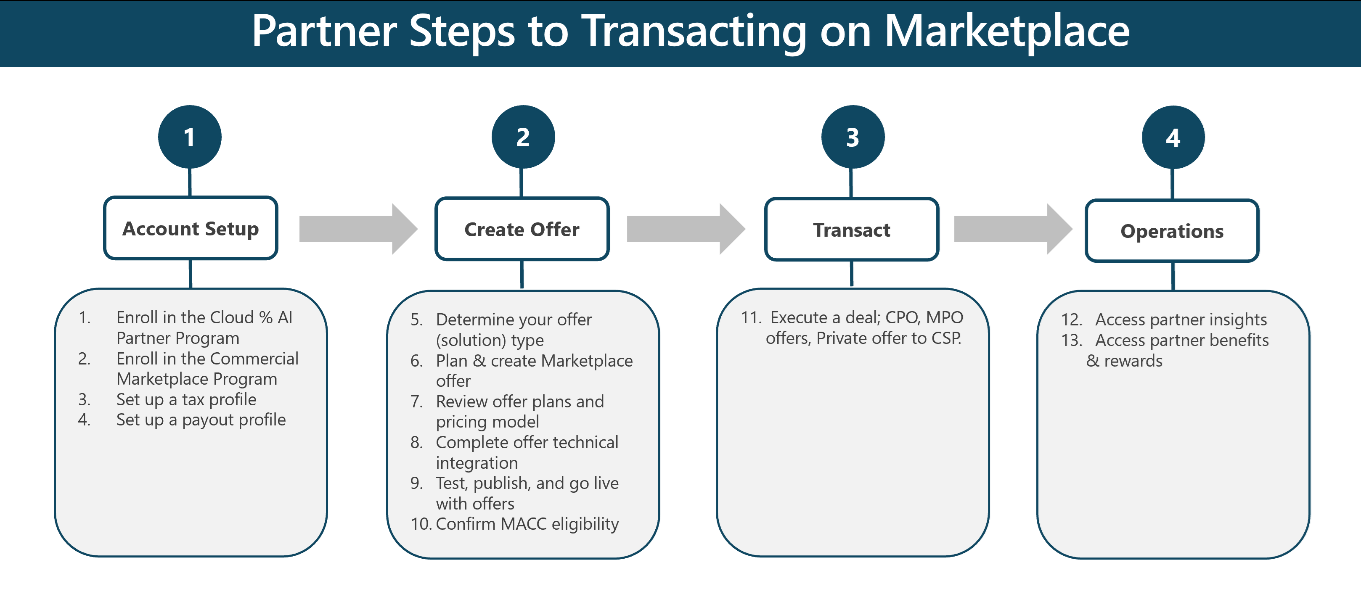
Let's get started on Microsoft Marketplace!
Account setup
The following sections walk you through the steps required to set up your account in Partner Center.
Step 1: Enroll in the Microsoft AI Cloud Partner Program account in Partner Center
Please note: Step 1 only needs to be done if you aren't already a member of the Microsoft Cloud AI Partner Program (formerly called the Microsoft Partner Network).
- Go to Welcome to Microsoft Partner Center.
- Select Partner (Microsoft Cloud AI program), and select Next.
- Login with Work Account if you have one. If you don't have a work account, then select Create a Work Account. To see whether your company already has a work account, learn how to create a new work account, or learn how to set up multiple work accounts to use with Partner Center, see Company work accounts and Partner Center.
- Agree to the terms and conditions
Important
To purchase new offers, renew existing offers in the Microsoft AI Cloud Partner Program, or publish offers to Microsoft Marketplace, your account must be verified. For more information, see Verifying account details in Partner Center.
For more information, see Getting around Partner Center
Step 2: Enroll in the Microsoft Marketplace Program
Enroll in the Microsoft Marketplace Program by following the steps in Use an existing Microsoft Marketplace AI Cloud Partner Program account. After this step is completed, you'll have a Microsoft Marketplace Publisher account. You can locate your Publisher account by following the steps in Access your account settings.
Step 3: Set up your tax profile
To have a transactable offer in Microsoft Marketplace, you need a tax profile that you submit and which Partner Center validates. You need to submit a tax profile before you create a payout profile. A tax profile can take up to 48 hours to validate.
Important
- Your tax profile contains the information that Microsoft needs to fulfill tax withholding and reporting requirements. For more support, see Setting up a tax profile in Partner Center.
- To set up a tax profile, an Owner or Finance Contributor role for the Microsoft Publisher account is required. For more information, see Assign user roles and permissions.
Step 4: Set up payout profile
Set up your payout profile in Partner Center. Your payout profile refers to the bank or PayPal account designated to receive the funds generated from your sales. You need to ensure that your payment currency is selected in order to complete the payment profile process.
Once your profile is set up, it shows Pending Microsoft Validation. Validation takes about 48 hours to be completed. The account owner receives an email indicating the payment profile is updated.
Important
- To transact or sell an offer through Microsoft Marketplace, a tax profile and payout profile must be submitted and validated in Partner Center so be sure to complete Steps 3 and 4 before moving forward.
- To set up a payout profile, an Owner or Finance Contributor role on Microsoft publisher account is required.
Let's get started creating offers in Microsoft Marketplace!
Offer creation on Microsoft Marketplace
The following sections walk you through the offer creation process on Microsoft Marketplace.
Step 5: Determine your transactable offer type
There are various offer types on Microsoft Marketplace. To determine which transactable offer type best suits your needs as a software publisher, let's first look at the various offer types on Microsoft Marketplace.
SaaS (Software as a service) SaaS offers are a good fit if your customers want to subscribe to your service and use it online. With SaaS, the partner hosts the software in your cloud infrastructure, managing technical infrastructure, app software, and data management responsibilities.
Professional Service Use this offer type if you want to offer assessment, briefing, implementation, proof of concept, workshop, migration, or customer support services for software that platforms on the Microsoft Cloud (this offer can be for your own software, another partner's software, or Microsoft software).
Virtual Machine Use the virtual machine offer type when you deploy a virtual appliance to the subscription associated with your customer.
Azure Application (Managed App) There are two kinds of Azure application plans: managed applications and solution templates.
- Solution template plans aren't transactable via Microsoft Marketplace:
- Managed application plans are transactable via Microsoft Marketplace. These plans have the same capabilities as solution template plans. You can configure them so the publisher or the customer manages them. These plans give customers full or restricted access to protect your IP.
Azure Container Use the Azure Container offer type when your solution is a Docker container image provisioned as a Kubernetes-based Azure container service.
To plan, price, and build your Microsoft Marketplace offer, follow the steps for your chosen type of offer.
Important
For a detailed comparison and technical guidance on selecting the right offer type for AI agents, refer to Choosing the right offer type for your Agent.
Use this flowchart to help determine the appropriate transactable offer type and pricing plan to sell your software in Microsoft Marketplace.
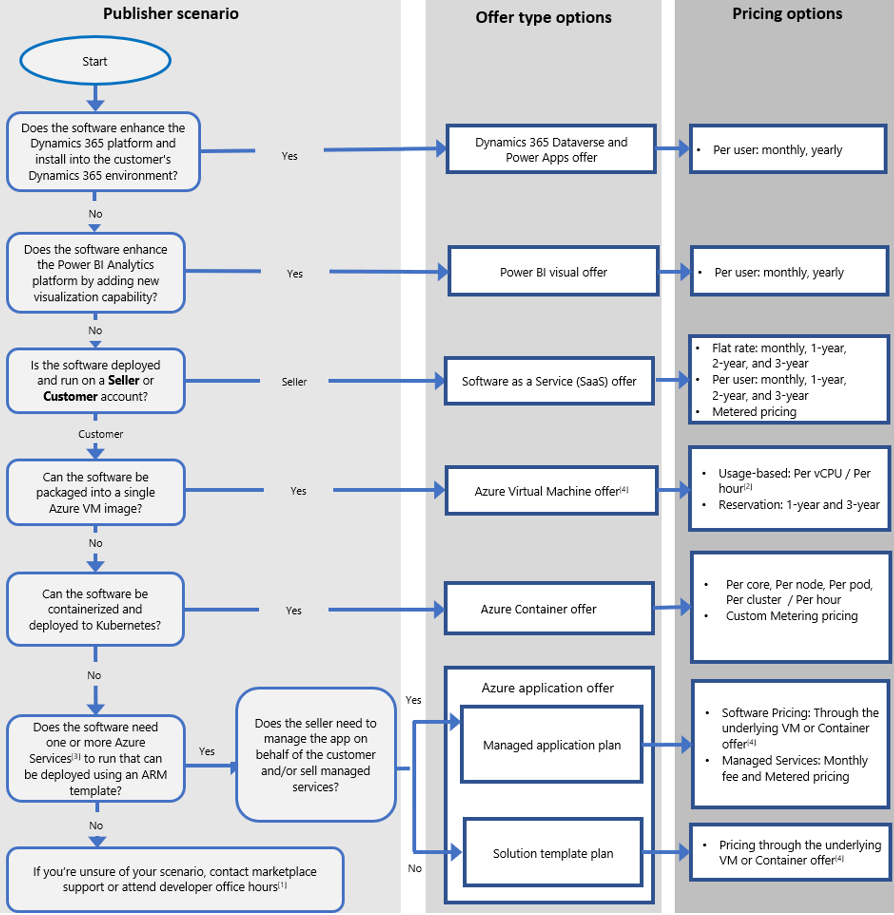
- This chart assumes that as the partner, you have a clear understanding of your software delivery and licensing/billing models.
For more information, see Choose your offer type.
Step 6: Plan and create a Microsoft Marketplace offer
Plan a SaaS offer
There are different options and requirements such as hosting tenant and billing options for publishing software as a service (SaaS) offer to Microsoft Marketplace. To understand all the options and requirements for publishing SaaS offers, see Plan a SaaS offer. If you're planning to deploy an AI agent as a SaaS offer, check out the recommendations in SaaS deployment.

Create a SaaS offer
After you Plan a SaaS offer and understand the options and requirements for publishing a SaaS offer, you're ready to create a SaaS offer. To get started, sign into Partner Center and create your SaaS offer.
Important
- For deploying an AI agent as a SaaS offer, ensure you submitted your agent to Microsoft 365 and Copilot store, see Store step-by-step submission. When you create a SaaS offer, under Offer setup, select Yes to publish your team apps and link your App Source ID to this Saas offer. Reference Creating your Marketplace listing for the appropriate categories to surface your agent.
- You might have started your online presence in Marketplace with a simple listing to advertise your services. This listing doesn't, however, create a transactable offer that can be sold through Marketplacee. To learn how to convert your existing listing into a fully transactable SaaS offer, see Migrating Listings to SaaS Offers.
- We recommend that you create a separate development/test (DEV) offer and a separate production (PROD). To learn how to create a DEV offer, see Plan a test and development SaaS offer.
For support in preparing your SaaS offer for publishing, see Mastering Partner Center in the Microsoft Marketplace or Creating SaaS offers in Partner Center.
Plan a professional service offer
Professional services are customer engagements that support a customer's use of the Microsoft Cloud. Use this offer type if you want to offer assessment, briefing, implementation, proof of concept, workshop, migration, or customer support services for software that platforms on the Microsoft Cloud. The offer can be for your own software, another partner's software, or Microsoft software. Professional services can be transacted on Microsoft Marketplace via Private Offers. To understand all the options and requirements for publishing professional service offers, see Plan a professional service offer.
Create a professional service offer
After you Plan a professional service offer and understand the options and requirements for publishing a professional service offer, you're ready to create a professional service offer. To get started, sign into Partner Center and create your professional service offer.
Plan a Virtual Machine (VM) offer
Virtual Machine (VM) offers in the Marketplace are transactable offers that provide you with preconfigured, ready-to-deploy virtual machine images for various operating systems, applications, and configurations, allowing you to quickly spin up new VMs in the cloud environment.
To understand the different options and requirements for publishing a virtual machine (VM) offer to Microsoft Marketplace, see Plan a virtual machine offer.
Create a VM offer
To learn more about creating an Azure VM offer for Microsoft Marketplace for both Windows-based and Linux-based virtual machines, see Create a virtual machine offer on Microsoft Marketplace.
For more information, see creating virtual machine offers in Partner Center.
Plan an Azure application (Managed App) offer
An Azure Application offer (also referred to as Managed App offer) is one way you can publish an offer in Microsoft Marketplace. Managed Apps are transactable offers that are deployed and billed via Microsoft Marketplace.
Important
- With Managed Apps, you can enable or disable management access to the resource group in the customer tenant, or give customers full or restricted access to it.
Create an Azure Application offer
You can create an Azure Application offer (also referred to as Managed App offer) so potential customers can buy your offer. To learn the process and how to create an Azure Application offer on Microsoft Marketplace, see Create an Azure application offer.
For more information, see Creating Managed Application offers in Partner Center or Plan an Azure managed application for an Azure application offer.
Plan an Azure container offer
Azure Container offers help you publish your container image to Marketplace in Azure portal. Azure Container offers are transactable offers that are deployed and billed through Microsoft Marketplace. Use the Container offer type when your offer is a Kubernetes application meant to be deployed on a managed Azure Kubernetes Service (AKS) cluster. If you're planning to deploy an AI agent as a container offer, check out the recommendations in Container deployment.
To understand the requirements of Container offers, see Plan an Azure Container offer.
Create an Azure Container offer
All offers go through our certification process, which checks your offer for standard requirements, compatibility, and proper practices. To learn about the process, see Create an Azure Container offer.
Step 7: Review offer plans and pricing models
Offers you create and sell through Microsoft Marketplace must have at least one plan. Microsoft Marketplace allows you to create various plans with different options within the same offer. These plans, sometimes referred to as stock keeping units (SKUs) can differ in terms of version, monetization, or tiers of service.
For detailed guidance on creating a plan and pricing models before you publish your offer, see Create plans for a SaaS offer, Configure pricing for professional services, VM Offer pricing models, Marketplace in Azure portal application offer pricing model, and Container Offer pricing model.
Private plans
A private plan is a plan that isn't publicly visible but allows an ISV to create and make it available exclusively to specific customers within Microsoft Marketplace.
- To create a private plan, see Private plans in Microsoft Marketplace.
- To create and publish a private SaaS plan in Partner Center, see the step-by-step guide.
- To subscribe to private SaaS plans, Tenant ID, and to purchase a SaaS plan in Microsoft Marketplace, see Purchasing a Private SaaS Plan.
Important
- To learn the differences between private plans and private offers, see What's the difference between private plans and private offers.
- To learn about private plans and how to resolve customer-blocking issues see Troubleshoot private plans in Microsoft Marketplace.
Step 8: Complete offer technical integration
To complete the technical integration of your offers, review these resources for your chosen offer type.
- I'm building an AI agent
- I'm a technologist building a SaaS offer
- Mastering the SaaS Accelerator
- I'm a technologist building Virtual Machine offers
- Mastering Managed application offers
- Mastering Container offers for Kubernetes apps
Professional services don't have technical integration.
Step 9: Test, publish, and go live with offers
Now that you created an offer that you want to publish, you preview your offer, test it, and publish it to go live to Microsoft Marketplace.
For each of the offer types see the step-by-step process to preview, test, publish, and go live.
- Test and publish a SaaS offer
- Test and publish a VM offer
- Test and publish an Azure application offer
- Test and publish a Container offer.
Due to the custom nature of professional services, they don't have testing functionality
Important
Use the SaaS Accelerator tool to expedite the publishing process of your transactable SaaS offers.
Co-sell
A co-sell opportunity is a collaboration of multiple parties to sell products to meet a customer's needs. A co-sell deal is a live Marketplace offer that you intend to co-sell with Microsoft.
You must upload collateral documents with a co-sell offer. That collateral undergoes automated and manual review before determining the co-sell program status that the offer can be given. This offer is available in internal Microsoft catalogs along with the uploaded collateral. See Manage co-sell opportunities in Partner Center.
Co-sell eligibility
Any offer published through Microsoft Marketplace developer program in Partner Center is eligible for co-sell-ready status if co-sell-ready requirements are met. Offers that are in-market are still eligible to be attached offers in co-sell deals. To qualify for co-sell-ready status, your offer or service must be published live to Microsoft Marketplace. To learn how to publish offers to Microsoft Marketplace, see Publishing guide by offer type.
Co-sell eligibility for business applications
IP-based offers built on Dynamics 365 apps on Dataverse, and Power Apps and Dynamics 365 Operations Apps that are enrolled in the ISV Connect program are also eligible for Co-sell ready status, which can be attained by completing the requirements for co-sell-ready status (described previously). Once completed, Microsoft sellers can co-sell the offer with you.
As a partner you must provide all the required information on the Co-sell > Offers page, including a one-pager and a pitch deck. We provide templates to help you create these documents. For more information, see Configure Co-sell offer.
IP co-sell requirements
Azure IP co-sell eligible status is required to make a Microsoft Marketplace offer MACC eligible. To learn about the requirements for Azure IP Co-sell Eligible status, see Requirements for Azure IP co-sell eligible status. The requirements apply to the following offer types:
- Azure Application
- Azure Container
- Azure Virtual Machine
- Software as a service (SaaS)
Important
The IP co-sell eligible designation is at the offer level. You must have an offer in order to have it in IP co-sell eligible status. For more support and resources on Co-sell, see the following articles:
Step 10: Confirm MACC eligibility
You must confirm your MACC eligibility before transacting on Microsoft Marketplace.
The Microsoft Azure Consumption Commitment (MACC) program applies to transactable offers that are published through Microsoft Marketplace. MACC-eligible offers purchased either through Microsoft Marketplace or through the Marketplace in Azure portal decrement customers' MACC for the amounts invoiced.
To determine if your offer is enrolled in the MACC program, sign into Partner Center and confirm on the Marketplace offers tile. For more information, see How to see if your offer is enrolled in the MACC program.
Professional services aren't eligible for MACC.
Important
To learn about MACC eligibility and requirements, see Azure Consumption Commitment enrollment, transactable offers, and take advantage of your Microsoft Azure Consumption Commitment (MACC) benefit.
Let's start transacting on Microsoft Marketplace!
Transacting on Microsoft Marketplace
This section of the onboarding playbook (guide) describes options to transact private deals in Microsoft Marketplace. You can find information on what you need to know about the types of private offers: Private offers—customer private offers, Private offer to Cloud Service Provider (CSP), and Multiparty private offers (MPO).
Step 11: Launch a deal: Customer private offer (CPO), Multi-party private offer (MPO), private offer to Cloud Solution Provider (CSP)
Customer private offer
Partners use private offers to create tailored deals that are directly extended to an end customer through Microsoft Marketplace. This type of offer allows for custom pricing, terms, durations, and configurations, enabling a personalized approach to business transactions. For more information on how to create a customer private offer, see ISV to customer private offer.
- In Partner Center, start by creating your private offer. For more information, see the Private offer troubleshooting guide.
- Submit the offer. The offer goes directly to the authorized purchasers from the customer procurement team for acceptance.
- The purchaser reviews the private offer, accepts it, and then makes the private offer purchase.
The following image shows the customer's private offer experience.
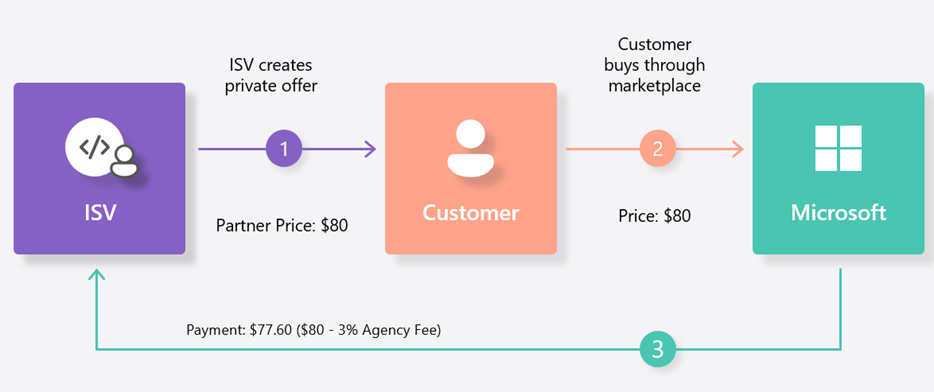
This example doesn't include tax.
Important
- To learn more about customer private offers see Private Offer Overview - ISV to Customer, ISV to Customer Private Offer Creation, Accepting and purchasing a Private Offer: The customer experience, and Mastering the Microsoft Marketplace: Private offers in Partner Center.
- To see answers to frequently asked questions about ISV to Customer Private Offers, see FAQ about ISV to Customer Private Offer.
- Learn to effectively address and resolve common challenges with accepting and purchasing private offers: Private offer troubleshooting - Microsoft Marketplace
Multiparty private offer (MPO)
Multiparty private offers are like CPO (customer private offers), but they allow partners and ISVs to add a selling partner to the private offer.
The ISV and the selling partner create an offer in Partner Center. After the offer is created, the selling partner extends the offer to the customer through Microsoft Marketplace. The customer purchases through Microsoft Marketplace. Microsoft then pays both the selling partner and the ISV. The following image illustrates the Multi-Party Private Offer experience.
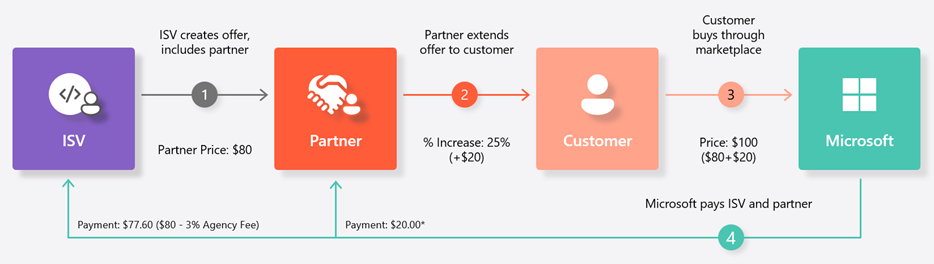
This example doesn't include tax.
To learn how ISVs can create and manage multiparty offers for selling partners, including best practices, and strategic tips, see the Multiparty private offers (for ISVs) - Microsoft Marketplace publisher.
To explore further the process of creating and reselling multiparty private offers that reseller partners can make available to their end customers, see Multiparty private offers (for selling partners) - Microsoft Marketplace publisher.
Important
- Multiparty private offer (MPO) frequently asked questions (FAQs).
- Learn to effectively address and resolve common challenges encountered while accepting and purchasing private offers: Private offer troubleshooting - Microsoft Marketplace
Private offer to Cloud Solution Provider (CSP)
CSP private offers allow you to create time-bound customized margins that suit your business needs and sell to customers through CSPs. As a partner, you can specify the margin and duration to create a wholesale price for your CSP partner. Microsoft Marketplace delivers payout to you based off the wholesale price configured for the deal.
Because CSPs complete the sale to a customer outside of Microsoft Marketplace, these deals don't decrement customers' MACC.
To learn how to create a private offer to a CSP including setting margins and durations, see Private Offer Creation by ISVs for CSP Partners and Configure ISV to CSP partner private offers in Microsoft Partner Center.
Important
- To learn how to become a Cloud Solution Provider, see Enroll in the Cloud Solution Provider program and What is the Cloud Solution Provider Program
- To learn about the purchase process in the Cloud Offer Provider (CSP) program, see the CSP Partner Private Offer Purchase Process, Private Offers for CSP Partners Overview, and ISV to CSP Private Offer FAQs.
Step 12: Access partner insights
Partner Center provides dashboards that help you analyze the data related to your offers, customers, transactions (including private offers), and other activities in Microsoft Marketplace. You can access these insights directly in Partner Center. To see your workspace dashboard, go to Partner Center and select the Insights page. From this page, you can download reports, data, and analysis.
Use the Insights and Earnings workspaces to find Microsoft Marketplace-specific reports
The Insights workspace supports Microsoft Marketplace and has Revenue, Orders, Usage, and Customer dashboards. For more information, see Analytics for Microsoft Marketplace in Partner Center. The revenue dashboard brings the Earnings, Orders, Usage, and Customer dashboards into a single report. For more information, see the Revenue dashboard in Microsoft Marketplace analytics and reference the revenue data dictionary.
Note
If the invoiceid starts with EA, the customer transaction is an Enterprise Agreement. If the invoiceid starts with a G, it's a Microsoft Customer Agreement (MCA). It can be helpful when trying to understand the payout schedule. Also, there's an EstimatedPayoutMonth column in the report that shows when to expect payment for the Microsoft Marketplace transaction.
The Earnings workspace supports multiple programs at Microsoft. For more information, see Earnings. Publishers can request that the report downloads as Marketplace only to limit the columns to the ones that relate to Microsoft Marketplace. For more information, see Earnings Microsoft Marketplace.
Note
In the Earnings workspace, you can view the Payment Summary card to understand if any Withholding tax or Store service fee tax is deducted. For more information, see Tax Details for Microsoft Marketplace.
Benefits for you in Microsoft Marketplace
Step 13: Access partner benefits & rewards
As you grow through Microsoft Marketplace, you unlock benefits designed to help you convert customers and close deals.
Your benefits are differentiated based on whether your offer is a list, trial, consulting, or transaction. To get started, publish an offer in Microsoft Marketplace. To see your list of benefits, in Partner Center, go to the Benefits workspace and select the Marketing benefits tab.
Incentives
As a Partner in the Microsoft AI Cloud Partner Program, you have access to various incentives programs that can reward you for delivering services to customers. These programs can also help you expand your business.
To learn more about the Microsoft incentives program, see About the Incentives program.
Rewards
Marketplace Rewards is a free program that provides you with benefits that help you market, sell your offers, and generate leads. You do these activities alongside Microsoft's sales team, through our sales channels using Microsoft Marketplace.
To learn how Marketplace Rewards, such as the Propensity Scoring benefit to identify transaction likelihood, can help you accelerate and close more deals, see Intro to Marketplace Rewards and Marketplace Rewards toolbox.
Training
Mastering the Microsoft Marketplace
The most comprehensive on-demand content available, Mastering the Marketplace, helps you develop transactable offers for Microsoft Marketplace. This site features instructional videos, interactive hands-on labs, and sample code to provide a better understanding of Microsoft Marketplace.
Microsoft Learn
Microsoft Learn is a free, online training platform that provides frictionless, interactive learning for all Microsoft products. Microsoft Learn includes documentation, training, certifications, Q&A, code samples, and more to support your Microsoft Marketplace learning needs.
Tools
Partner Center streamlines several business processes to make it easier for you to manage your relationship with us and your customers. It gives you access to the tools, insights, and data you need to get work done seamlessly. Learn how to set up your Partner Center account.
Once you set up your Partner Center account, you can access Partner Center to manage your Microsoft account and users, engage with customers, build relationships with other partners, enroll in incentive programs, manage customer subscriptions, and more.
Azure portal is an online interface used to build, manage, and monitor Azure services.
SaaS Accelerator: Provides a fully functional community-led SaaS reference implementation for partners interested in publishing transactable SaaS offers in Microsoft Marketplace quickly.
Support and resources
Support
Partners can get support for Microsoft Marketplace program through Partner Center.
Customers can get help with Microsoft Marketplace within Azure portal by opening a support request in the Help + Support page of the portal.
Resources
Microsoft Marketplace policies and terms.
Technical Marketplace consults via ISV Success and Marketplace Rewards Program.