Note
Access to this page requires authorization. You can try signing in or changing directories.
Access to this page requires authorization. You can try changing directories.
A scope is a container that groups actions together, making it easier to organize and visualize the parts of your workflow. When a workflow becomes larger and more intricate, scopes help keep things organized and simplify troubleshooting. This article explains how to use scopes effectively in Power Automate.
Best practices for using scopes
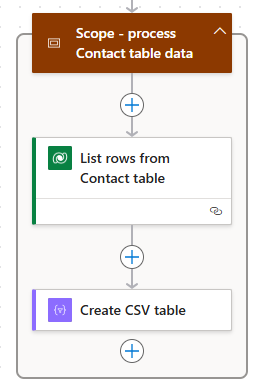
Group related actions. When you have a set of actions that are logically related, group them into a scope. This approach keeps related tasks together and makes it easier to understand the purpose of each section.
Organize your flow. Scopes create a hierarchical structure within your flow. You can nest scopes to break down your workflow into smaller, more manageable sections. A hierarchical organization makes it easier to understand and manage complex workflows.
Implement error handling. You can configure scopes to catch and handle errors that occur in the actions they contain. Using a catch scope makes it easier to troubleshoot and fix issues in your workflow. Learn more in Employ robust error handling.
Make your flow easier to read. Collapse scopes to hide their contents, making it easier to read the flow or to focus on one part of it. Collapsing scopes helps keep your workspace neat and organized, especially when you're working with large and complex flows.
Avoid overusing scopes. Not every action needs to be in a scope. Use scopes judiciously to avoid creating unnecessary complexity. Group actions into scopes only when it adds to the organization and manageability of your flow.
Tip
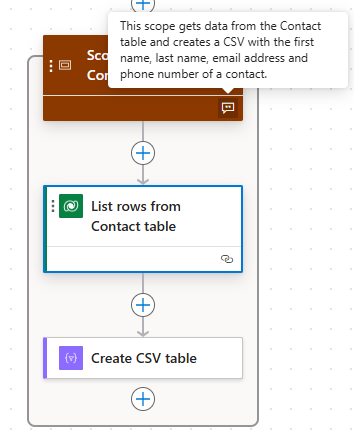
To make your flows more readable, add comments or notes in the scope.