Note
Access to this page requires authorization. You can try signing in or changing directories.
Access to this page requires authorization. You can try changing directories.
Handling errors efficiently is key to making sure that your automated workflows run reliably and work as you expect them to. This article offers strategies to identify and resolve issues quickly and efficiently.
Configure Run after settings
Use Run after settings to specify what should happen if an action fails, times out, is skipped, or is successful. For each action, you can set conditions to determine the next steps based on the outcome of the previous action. This approach allows you to create alternative paths for error handling. For example, if an action fails, you can send a notification or log the error details as the next action.
In the following example, the flow sends an email notification if it fails at the step Update a row:

Get information about the current flow run
The workflow() function is a built-in function in Power Automate that provides information about the current workflow run. It returns a JSON object containing details about the workflow, including its ID, name, and other metadata. It's useful for logging and debugging purposes, because it allows you to access information about the flow run dynamically.
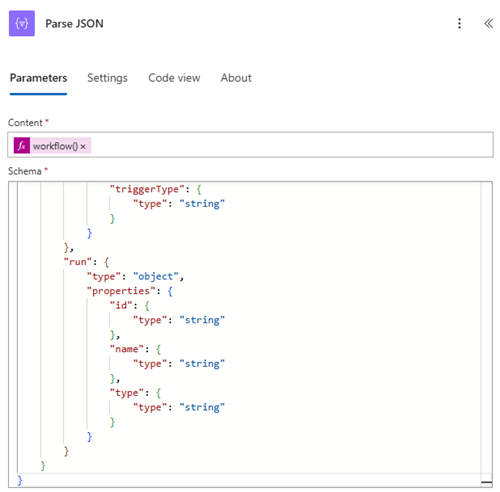
The workflow() JSON schema is:
{
    "type": "object",
    "properties": {
        "id": {
            "type": "string"
        },
        "name": {
            "type": "string"
        },
        "type": {
            "type": "string"
        },
        "location": {
            "type": "string"
        },
        "tags": {
            "type": "object",
            "properties": {
                "flowDisplayName": {
                    "type": "string"
                },
                "environmentName": {
                    "type": "string"
                },
                "logicAppName": {
                    "type": "string"
                },
                "environmentFlowSuspensionReason": {
                    "type": "string"
                },
                "state": {
                    "type": "string"
                },
                "createdTime": {
                    "type": "string"
                },
                "lastModifiedTime": {
                    "type": "string"
                },
                "createdBy": {
                    "type": "string"
                },
                "triggerType": {
                    "type": "string"
                }
            }
        },
        "run": {
            "type": "object",
            "properties": {
                "id": {
                    "type": "string"
                },
                "name": {
                    "type": "string"
                },
                "type": {
                    "type": "string"
                }
            }
        }
    }
}
Use the Parse JSON action with the JSON schema to parse the response from the workflow() function, as in the following example.
Get the URL of the current flow run
Use the Compose action to create a flow run URL. You can use it to directly link to the flow run in a notification email, or store it in a table where you log errors.
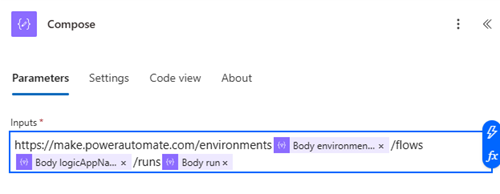
The following input in the Compose action creates the URL:
https://make.powerautomate.com/environments@{body('Parse_JSON')?['tags']?['environmentName']}/flows@{body('Parse_JSON')?['tags']?['logicAppName']}/runs@{body('Parse_JSON')?['run']}
Caution
Use this option carefully. It can result in excessive custom logging and an increased number of actions, which might negatively affect your workflow's performance. Overuse can lead to an anti-pattern, where frequent alerts and actions degrade the efficiency and effectiveness of your workflow.
Group actions into scopes for error handling
Group related actions into scopes and use them to handle errors collectively using a try-catch pattern. Place your main actions in a "Try" scope and create a "Catch" scope for error handling. Configure the "Catch" scope to run if the "Try" scope fails.
In the following example, the "Catch" scope contains actions to identify the error, log it, and send an email notification.
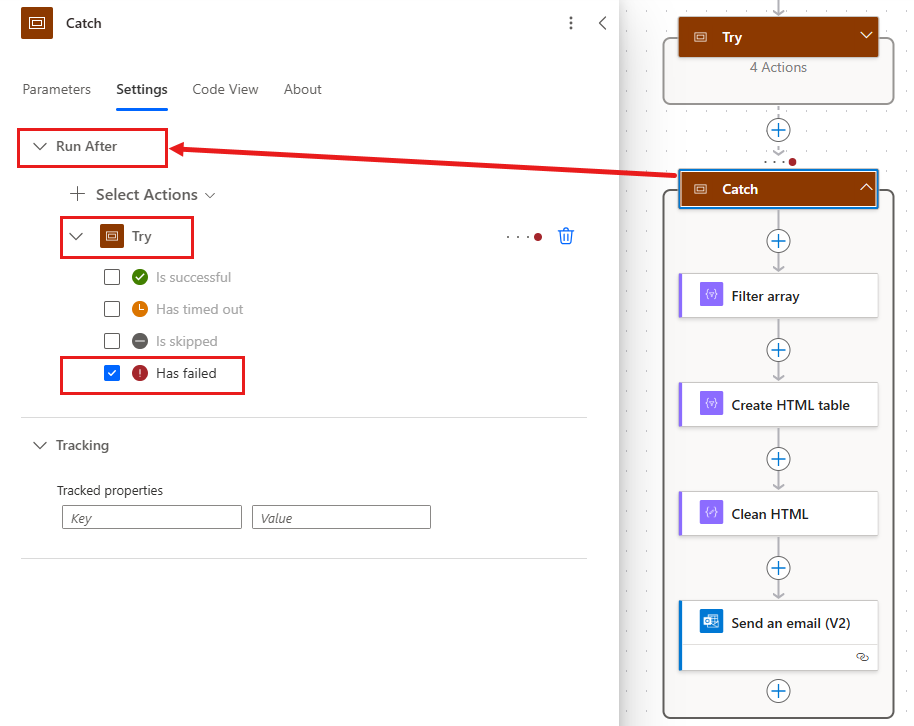
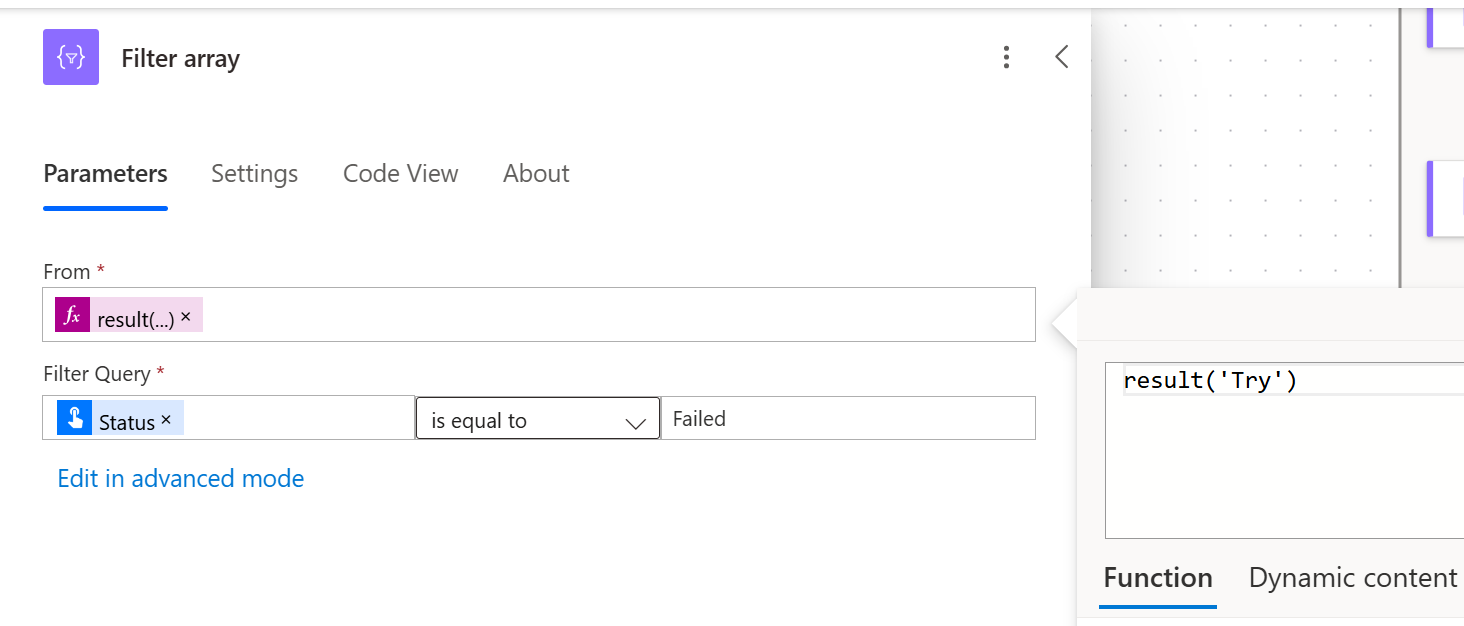
In this example, the Filter array action filters the response from the result() function to get the error.
Learn more in Organize your flows with scopes.
Implement a retry policy
A retry policy helps your workflows recover from transient failures that occur because of temporary or intermittent problems with a network or service. Retry policy in flow settings allows you to retry an action at either fixed or exponential intervals. Exponential retry policies are preferred because they can extend the retry period over time and increase the chances of successfully completing the action.
An exponential retry policy starts with a short retry interval and gradually increases the interval between retries. This approach helps avoid overwhelming the system with frequent retries and allows more time for the issue to resolve. For example, in an exponential retry policy, the first retry might occur after one minute, the second after two minutes, the third after four minutes, and so on, until the action is successful.
Configure the retry policy in the settings of the action you want to apply it to. Set the initial interval, or the time before the first retry, and the maximum retry count, or the maximum number of times the action will be retried. Monitor the performance of your flow and adjust the retry settings as needed.

Learn more in Recommendations for handling transient faults.
Terminate the flow after an error
Add the Terminate action when you need to stop the flow due to an error. The Terminate action can set a status to determine the next step to take. For example, if a critical error occurs, you can use the Terminate action to stop the flow and set the status to "Failed" to ensure that no further actions are executed. To help you determine why the flow failed, provide a status and message in the settings of the Terminate action.

Log errors and send notifications
To make your workflows more resilient, take advantage of error logging and notifications. Use actions to record error details in a SharePoint list or other storage solution and then send a notification to alert stakeholders. The Power Automate flow service also sends email alerts to flow owners for common or critical failures like broken connections or throttling issues. Email alerts include detailed error information and troubleshooting tips.
Instead of using custom logging, you can use Application Insights to alert you when your cloud flows encounter an error. Learn more in Set up Application Insights with Power Automate.