Note
Access to this page requires authorization. You can try signing in or changing directories.
Access to this page requires authorization. You can try changing directories.
APPLIES TO:  Power BI service for business users
Power BI service for designers & developers
Power BI service for business users
Power BI service for designers & developers  Power BI Desktop
Requires Pro or Premium license
Power BI Desktop
Requires Pro or Premium license
You can view reports on many devices with varying screen sizes and aspect ratios. Learn how to change the display of a report page, so it fits your needs.

Explore the View menu
The options in the View menu give you flexibility to display report pages at the size and width you choose.

If you view a report on a small device, it might be hard to see titles and legends. Select View > Actual size to increase the size of the report page. Use the scroll bars to move around the report.
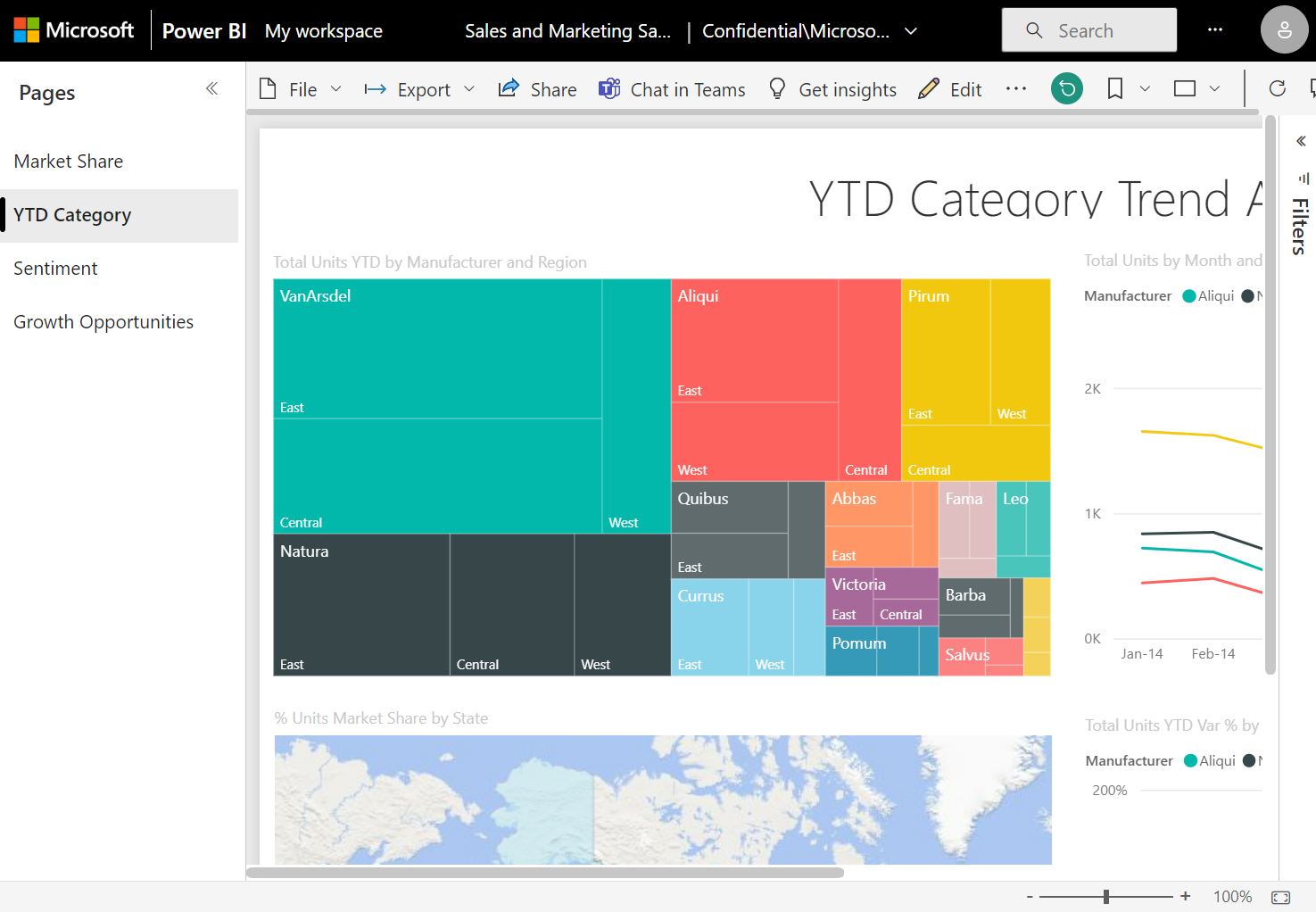
Fit the report to your screen width by selecting Fit to width from the View menu. Because it adjusts the width and not the height, you might need to use the vertical scroll bar.

If you don't want any scroll bars, but you want to make the best use of your screen size, select Fit to Page from the View menu.

Change your display colors by selecting High contrast colors in the View menu. Select one of the options, such as High-contrast #1, High-contrast #2, High-contrast black, or High-contrast white. This feature gives people with impaired vision options to see the reports better. The example below is the High-contrast #1 option.

Select Full screen in the View menu to display your report page without menu bars and headers. Full screen is a good choice for small screens where the details might be hard to see. Full screen can also be a good choice when projecting report pages on a large screen for people to view but not interact with.

When you exit the report, your View settings aren't saved. The changes revert to the default view settings. If you want to save these settings, you can preserve them as a bookmark.
Use your browser to change page display
Use the zoom controls in your browser to increase or decrease the available canvas area. Decreasing the zoom expands the available canvas area, and increasing the zoom decreases the available canvas area.

Zoom in on a visual
To examine a single visual in more detail, use focus mode or full screen mode.
Focus mode
Focus mode expands a visual to fill the canvas while keeping the Filters pane accessible. Hover over a visual and select the Focus mode icon, or select More options (...) > Open in focus mode on dashboard tiles.

In focus mode, you can view and modify filters to explore your data. Filter changes are saved automatically for report visuals (select Reset to default to discard), but not for dashboard tiles. For report visuals, all filter levels are available (Visual, Page, Drillthrough, and Report). For dashboard tiles, only Visual level filters are available.
To exit, select Exit focus mode or Back to report.
Full screen mode
Full screen mode removes all UI elements for presentations or kiosk displays. Select View > Full screen for reports, or the full screen icon for dashboards. To view a single visual in full screen, open it in focus mode first.

Move your cursor to display navigation options at the bottom of the screen, including Fit to page, Fit to width, and page navigation arrows.