Note
Access to this page requires authorization. You can try signing in or changing directories.
Access to this page requires authorization. You can try changing directories.
The site lifecycle management features from Microsoft SharePoint Advanced Management let you improve site governance by having automated policies configured in the SharePoint admin center. Site ownership policies, part of SharePoint's site lifecycle management features, help you automatically monitor and enforce site ownership requirements across your organization. These policies allow you to define who should be responsible for each site, set minimum owner or admin counts, and automate notifications when sites do not meet your criteria. By regularly identifying noncompliant sites and prompting users to take action, site ownership policies support effective site management, reduce the risk of ownerless sites, and help maintain security and compliance in your SharePoint environment.
What do you need to create a site ownership policy
What are the license requirements?
Your organization needs to have the right license and meet certain administrative permissions or roles to use the feature described in this article.
First, your organization must have one of the following base licenses:
- Office 365 E3, E5, or A5
- Microsoft 365 E1, E3, E5, or A5
Additionally, you need at least one of these licenses:
- Microsoft 365 Copilot license: At least one user in your organization must be assigned a Copilot license (this user doesn't need to be a SharePoint administrator).
- Microsoft SharePoint Advanced Management license: Available as a standalone purchase.
Administrator requirements
You must be a SharePoint administrator or have equivalent permissions.
Additional information
If your organization has a Copilot license and at least one person in your organization is assigned a Copilot license, SharePoint administrators automatically gain access to the SharePoint Advanced Management features needed for Copilot deployment.
For organizations without a Copilot license, you can use SharePoint Advanced Management features by purchasing a standalone SharePoint Advanced Management license.
How does site ownership policies works?
Scope of site ownership policies
You can create different policies with different scopes based on your organization's requirements.
You can choose the sites to be scoped under the policy based on site templates, creation sources, sensitivity labels and include sites under retention policies and retention holds. If you wish to exclude specific sites, you can add the site URLs of up to 100 sites in the Exclude sites section while configuring the policy.
Note
OneDrive sites, sites created by system users, app catalog sites, root sites, home sites, tenant admin sites are excluded from site ownership policies.
Sites marked as read-only by site ownership policies will be detected and added to the report if they are not compliant as per policy configurations. All other sites locked with no access or read-only access are excluded from site ownership policies.
Policy modes
When setting up a site lifecycle policy, you can choose between a simulation policy and an active policy.
Simulation mode
The simulation policy runs once and generates a report based on the set parameters. If it fails, you need to delete it and create a new one. Once you validate a simulation policy, you can convert it to an active policy.
Active mode
The active policy runs monthly, generating reports and sending notifications to site owners to confirm the site's status. If it fails during a particular month, it will run again on the next schedule. The active policy enforces actions on inactive sites that remain uncertified by the site owner or admin, provided you configured it to take enforcement actions.
Ownership criteria
Different organizations have different needs. Site ownership policies allow you to customize how ownership is determined by allowing you to:
Choose who is considered responsible for managing a site in your organization - site owners or site admins or both.
Define the minimum number of owners or admins a site should have, currently up to 2.
The policy identifies all sites that aren't compliant with the configured ownership criteria and generate the report. If your policy is active, email notifications would then be sent for identified sites.
We recommend choosing 2 as the minimum owner count so that sites with a single owner are identified and another owner is added immediately. Having more than one site owner can help to reduce the risk of sites becoming ownerless.
How can you resolve user ID mismatches before running the site ownership policy?
Before running the site ownership policy, it's important to resolve any user ID mismatches to ensure accurate ownership outcomes for each site. Sometimes, if a site owner was deleted and later recreated, ownership references may point to an old, non-existent PUID. As a tenant admin, you should fix these mismatches by running the Site User ID Mismatch diagnostic.
Create a site ownership policy
To create a site ownership policy, go to the SharePoint admin center.
Expand Policies and select Site lifecycle management.

Select + Create policy and select Next.

Enter your policy scope parameters that determine which sites the policy would act on and select Next.
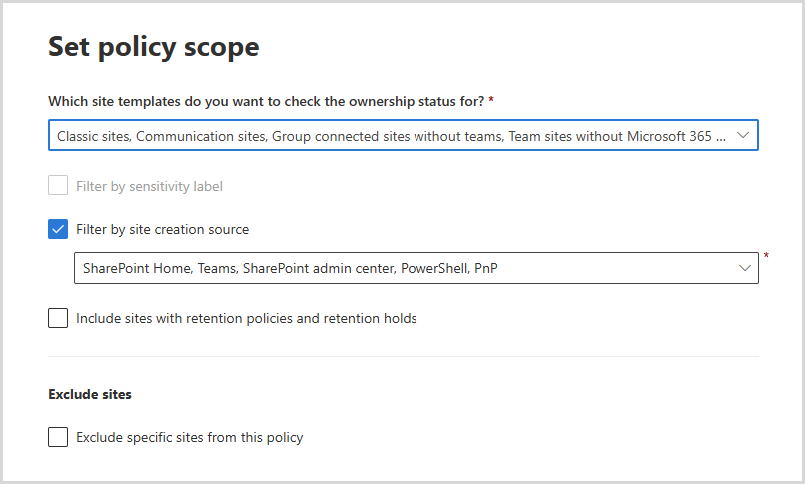
If you select Upload a CSV file with a list of up to 10,000 URLs, you can upload a list of site URLs of select sites for the policy.
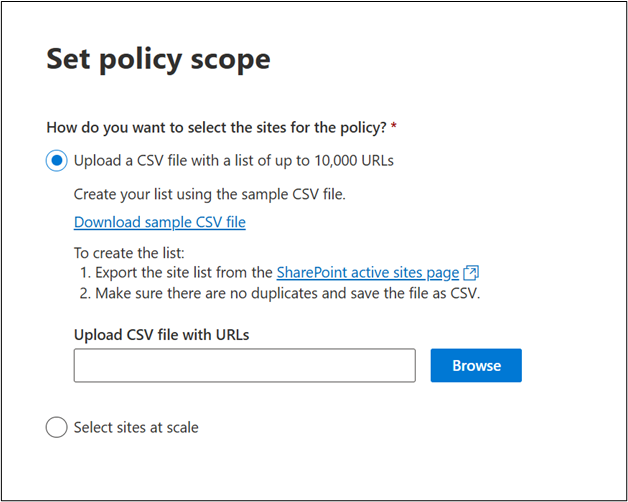
Tip
- You can export the site list from the SharePoint active sites page.
- Ensure the CSV file use the same format of the sample CSV file and has no duplicate URLs and those URLs are valid and complete.
- Ensure the URLs listed in CSV file belong to your tenant’s domain.
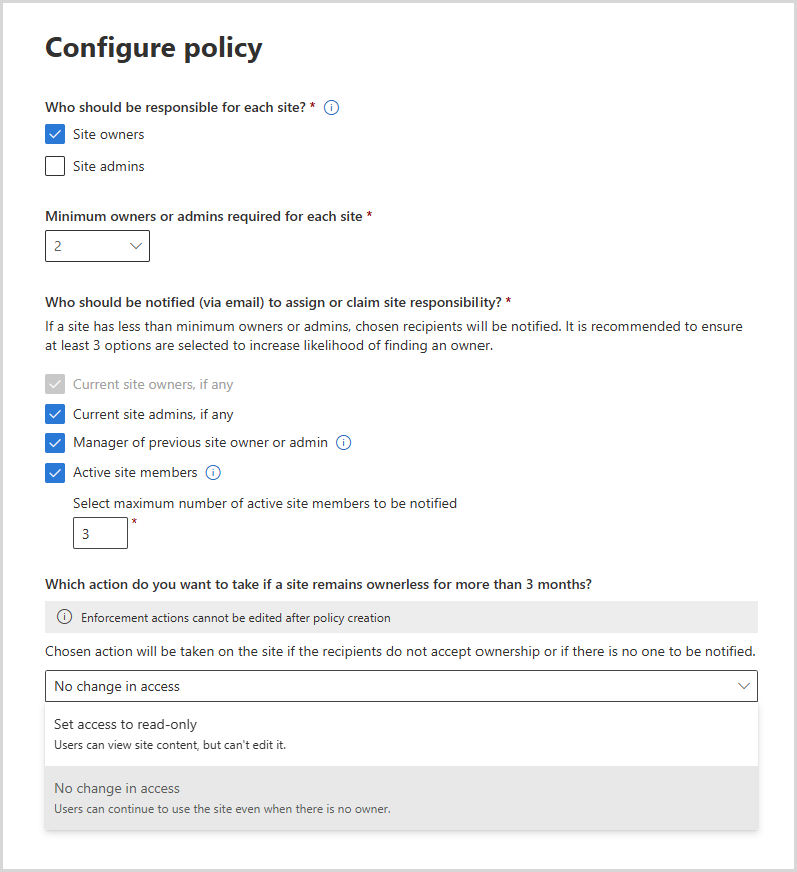
Define the ownership criteria, who should be notified if a site doesn't meet these criteria and what action to take if the site fails to meet these criteria for three months. Select Next.
Name your policy, add a description (optional) and select a policy mode. Select Finish.

Select Done. Your policy is now created and can be viewed and managed by selecting Site ownership policies in the Site lifecycle management dashboard.


Inactive site notifications
Each policy runs every month to identify noncompliant sites. Email notifications are then sent to the configured set of recipients as per the policy.
Notifications are triggered only if the policy is running in Active mode.
Important
Site lifecycle policies leverage Outlook Actionable Messages to enable recipients take necessary actions within email.
- For notifications to render properly, ensure Outlook version requirements are met in your organization.
- To troubleshoot rendering issues, refer to frequently asked questionnaire.
The potential recipients of these email notifications, if configured in the policy, are:
Current site owners: If the minimum owner or admin count is set to 2 and the site has an existing site owner, they receive an email notification asking them to add another owner.
Current site admins: If the minimum owner or admin count is set to 2 and the site has an existing site admin, they receive an email notification asking them to add another owner.
Managers of previous owners or admins: If an owner or admin of a site leaves the organization, their managers are informed that the site needs an owner for effective management. If managers are members of a site, they can accept ownership. If they're visitors or don't have access to the site, they can coordinate with SharePoint admins to find the next best owner.
As a user's details are deleted from the system 30 days after leaving the organization, managers might get only one notification about the site.
If the policy runs after 30 days of a user's leaving the organization, manager information won't be available, and notifications can't be sent.
For a Teams site, the "manager of the previous site owner" notification works only for users added directly to the SharePoint site owner. If the user was added from the M365 Group, the notification won't be sent. This is a system limitation due to how user information is retained after an account is deleted. Therefore, to improve the chances of successfully sending notifications, we recommend selecting at least three options.
Active site members: Based on policy configuration, emails are sent to the most recent active members of a site to accept ownership.
To ensure relevance and recency, read or write activity performed by a site member on a site in the last 180 days is considered as an activity.
Any user with last activity beyond 180 days is not considered for these notifications.
External and guest users will NOT be considered for these notifications to accept ownership.
Note
If a site has no one to be notified as per the email recipients provided during policy configuration, the count is provided in the summary. You can triage the sites and determine the next course of action.
Sites managed by multiple site lifecycle management policies
For each type of site lifecycle management policy—site ownership policy, inactive site policy, and site attestation policy—if multiple policies are created under the same type, notification emails aren't repeated. If a notification was sent within the last 30 days from any policy of that type, and the site remains uncertified, no further notifications are sent. The policy execution report shows the site's status as "Notified by another policy."
For example, if a site is covered by two different site ownership policies and receives a notification email from the first policy, no additional notifications will be sent from the second policy within the next 30 days if the site remains uncertified.
It's recommended to ensure that policies of the same type do not have overlapping scopes. If sites fall under the scope of multiple policies of the same type, the notification schedule and enforcement actions on the site could become unpredictable.
Enforcement actions
The following table summarizes how the inactive site policy behaves based on the selected enforcement action:
| Enforcement action | Policy behavior |
|---|---|
| Do nothing | The specified recipients receive monthly notifications for three months. After this period, no notifications are sent for the next three months. If the site remains ownerless after six months, monthly notifications resume. The policy execution report lists ownerless sites as unactioned. You can download this report and filter out sites marked as unactioned. |
| Read-only access | The specified recipients receive monthly notifications for three months. If the notification recipients don't mark the site as certified during this period, the site goes into read-only mode. |
| Archive sites after mandatory read-only period | The specified recipients receive monthly notifications for three months. If the notification recipients don't mark the site as certified during this period, then the site goes into a read-only mode for the configured number of months. After the configured number of months, the site gets archived through Microsoft 365 Archive. Archival is subject to the tenant enabling Microsoft 365 Archive on the Microsoft Admin center. |
If a site is identified as not meeting the ownership criteria for three consecutive months, one of the following actions is taken depending on what is configured:
Do nothing: There's no change to access, but subsequent notifications are paused and will resume after three months.
Set access to read-only: Site members and visitors can view content but no longer make edits. No further notifications are sent.
- If option is chosen and no one can be notified during the three months, the site continues to have its access set to read-only.
Read-only mode
A site ownership policy configured with the read-only enforcement action sends additional notifications to inform the specified recipients when there's no response.
A notification is sent when the site goes into read-only mode.
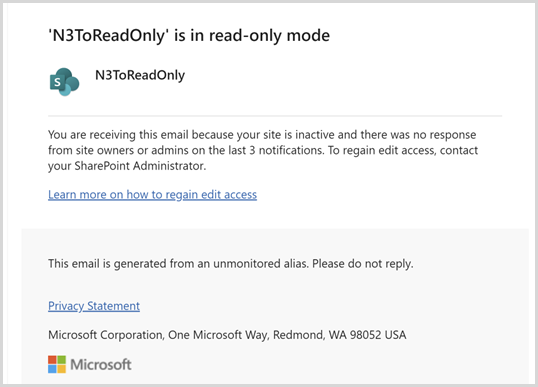
Once the site is in read-only mode, the following banner is added to the site:

Remove site from read-only mode
To remove a site from read-only mode in SharePoint admin center, go to the Active sites page, select the site, and then select Unlock from the site page panel.
Site owners can't remove a site from read-only mode and must contact the tenant admin to remove read-only mode.

Unarchive a site
To unarchive a site in SharePoint admin center, expand Sites and select Archived sites. Select the site you want to unarchive and select Reactivate.
Note
Only tenant admins can reactivate an archived site.
Reporting
After each run of the configured policy, you can view a report about the sites it identifies.
In the Site ownership policies page, select the desired policy from the list.
The report outlines the number of sites identified as not meeting the ownership criteria, along with the number of sites that didn't have anyone to notify.
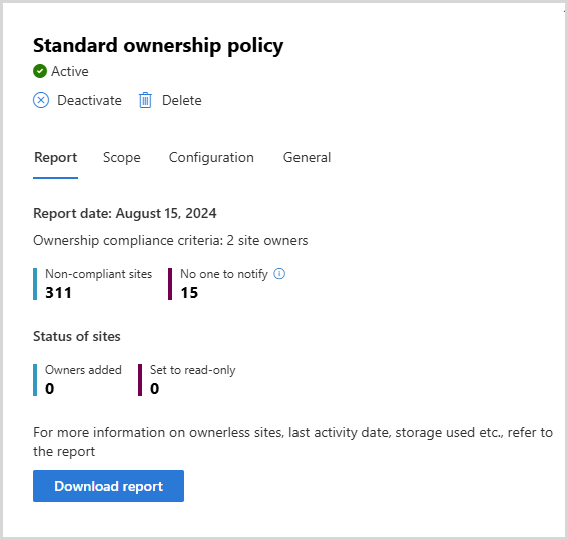
Select Download report to download the detailed report in a .csv format. The following table describes the information included in the policy execution report:
| Column | Definition |
|---|---|
| Site name | Name of the site |
| URL | URL of the site |
| Template | Template of the site |
| Sensitivity label | Sensitivity label of the site |
| Retention policy | Is any retention policy applied to the site or not |
| Site lock state | State of site access before the policy is run (Unlock/Read-Only/No access) |
| Minimum owners or admins configured | Minimum owner or admin count configured by you while creating the policy |
| Number of site owners | Total count of site owners for the site |
| Email address of site owners | Email addresses of all site owners |
| Number of site admins | Total count of site admins for the site |
| Email address of site admins | Email addresses of all site admins |
| Managers of previous owners or admins | Email addresses of the managers of previous owners or admins (if this option was configured during policy set-up) |
| Active members | Email addresses of the active site members (if this option was configured during policy set-up) |
| Total notifications count | Total notifications sent so far by any policy under the same policy template |
| Action status | Status of the site [First/second/third notification sent, Site in read-only mode, Site archived, Action taken by another policy] |
| Action taken on (UTC) | Date on which the enforcement action was taken (date when site was archived or put in read-only mode) |
| Last activity date (UTC) | Date of last activity detected across SharePoint site and connected workloads |
| Site creation date (UTC) | Date when the site was created |
| Storage used (GB) | Storage consumed by the site |
| Duration in read-only (days) | Number of days the site is in the enforced read-only state |