Note
Access to this page requires authorization. You can try signing in or changing directories.
Access to this page requires authorization. You can try changing directories.
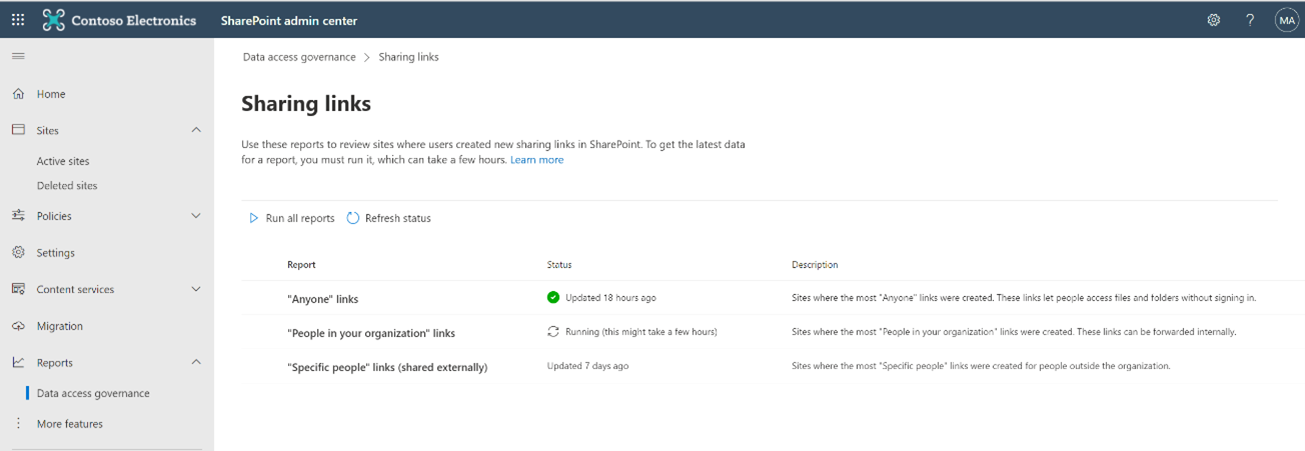
Sharing links activity reports are one of the two types of Data access governance activity reports available with SharePoint Advanced Management. These reports help you identify sites where users have created the most new sharing links in the last 28 days. Combined with other Data access governance reports, this report helps you monitor sharing activities and identify potential oversharing risks in your organization.
What do sharing links activity reports show me?
Sharing links reports show information for the following types of links:
| Name of report | Description |
|---|---|
| 'Anyone' links | This report provides a list of sites in which the highest number of "Anyone" links were created. "Anyone" links allow anyone to access files and folders without signing in. |
| 'People in the organization' links | This report provides a list of sites in which the highest number of 'People in the organization' links were created. These links can be forwarded internally and allow anyone in the organization to access files and folders. |
| 'Specific people' links shared externally | This report provides a list of sites in which the highest number of 'Specific people' links were created for people outside the organization. |
Note
We recommend running the site permissions report first to understand your organization's current link sharing baseline, then use this activity report to monitor ongoing link sharing activities.
When to use sharing links reports?
We recommend running the sharing links reports in combination with other Data access governance reports, to get a complete and ongoing picture of your organization's data access landscape. Here's how to use them together effectively:
- Start with snapshot reports: Run site permissions reports and sensitivity label reports first to understand your baseline permission structure and identify sites with the broadest exposure. We recommend running these quarterly to maintain a comprehensive view of your organization's data access.
- Follow up with activity reports: Use sharing links and EEEU activity reports to monitor recent oversharing activities and catch emerging risks. We recommend running these monthly to stay on top of ongoing sharing activities.
Run sharing links reports
Important
Review these important details before creating your first report:
- Reports are created for SharePoint sites only. OneDrive support is available via PowerShell
- Reports may take up to 24 hours to complete
- Reports capture data from up to 24 hours before generation
- You can run reports again every 24 hours
To get the latest data for each report, you need to manually run it. You can run all reports at once or select individual reports to run. To check if a report is ready or see when it was last updated, check the Status column.
View sharing links reports
After your report is ready, select the report name to view the data. Each sharing link report displays:
- Top 100 sites: Sites with the highest number of sharing links created in the last 30 days
- Applied policies: Security policies active on each site:
- Primary administrator: The designated admin for each site
Note
OneDrive data is now available via PowerShell.
Download sharing links reports
You can download any report as a CSV file for offline analysis, containing data for up to 1 million sites.
Take action based on sharing links report findings
After discovering potential oversharing through sharing links reports, you can take action to remediate risks and improve your organization's data access governance. Learn more here.