Remarque
L’accès à cette page nécessite une autorisation. Vous pouvez essayer de vous connecter ou de modifier des répertoires.
L’accès à cette page nécessite une autorisation. Vous pouvez essayer de modifier des répertoires.
Note
Community interest groups have now moved from Yammer to Microsoft Viva Engage. To join a Viva Engage community and take part in the latest discussions, fill out the Request access to Finance and Operations Viva Engage Community form and choose the community you want to join.
Because many entities that are available in finance and operations apps are enabled for Open Data Protocol (OData), the entities aren't available as virtual entities in Microsoft Dataverse by default. After you complete configuration for finance and operations apps virtual entities in Dataverse, you can enable the virtual entities in the Dataverse environment. Administrators can then determine which entities to expose as virtual entities that can be used in Dataverse.
Note
You must configure finance and operations apps virtual entities in Dataverse before you can enable the virtual entities. For finance and operations apps environments linked to a Microsoft Power Platform environment, the configuration is done automatically. For unlinked environments, you must manually complete the configuration before you can enable the virtual entities. For step-by-step information about how to configure finance and operations apps virtual entities in Dataverse, see Configure Dataverse virtual entities.
Generate virtual entities
Open the Power Platform admin center, and select the Environments tab.
In the Environments list, select the Power Platform environment associated with your finance and operations apps environment.
In the Details section of the environment page, select the Environment URL link to open the Power Platform environment.
At the top-right of the page, select the Settings gear icon, and select Advanced Settings.
At the top-right of the Settings page, select the Advanced find filter icon.
In the Advanced find page, select Available finance and operations entities in the Look for drop-down list.
Enter any other filter criteria to restrict the results to specific entities, and select Results.

Find and open the entity that you want to enable.
Select the Visible check box, and then save your change.

The virtual entity is generated and appears on all the appropriate menus. For example, it appears in the Advanced find dialog box.
Refresh virtual entity metadata
Force a refresh of a virtual entity's metadata when you expect that the entity metadata in finance and operations apps has changed. To force a refresh, select the Refresh checkbox, and then save your change. The latest entity definition from finance and operations apps is synchronized to Dataverse, and the virtual entity is updated.
Disable virtual entities
Virtual entities for finance and operations apps are in a managed solution and you can't delete them directly from the maker portal. To disable a virtual entity and remove the virtual entity metadata from the Dataverse environment, follow these steps:
- Find and open the entity by following steps 1 through 8 in the Generate virtual entities section of this article.
- Clear the Visible checkbox.
- Save your change.
Reference virtual entities
The MicrosoftOperationsERPVE solution generates all virtual entities and manages them through the API. When you make entities visible or hidden, the solution's items change. However, the solution remains a managed solution that you can depend on.
The standard Application Lifecycle Management (ALM) flow is to take a standard reference to a virtual entity from this solution. Use the Add existing action in the independent software vendor (ISV) solution to do this. The virtual entity appears as a missing dependency of the solution, and the import process checks it. If a specified virtual entity doesn't exist during import, it's automatically made visible. No extra work is required.
To consume virtual entities, follow these steps:
- In Dataverse, create a separate solution that contains the consuming logic. For more information, see Create a solution in the Power Platform documentation.
- Select Add existing > Table.
- In the Add existing tables list, select the virtual entity that you want to reference.
- When you're prompted to select assets to add, select any forms, views, or other elements that you want to customize, and then select Finish.
You can use the development tools to modify existing elements for the virtual entity, such as forms. You can also add new forms, views, and other elements.
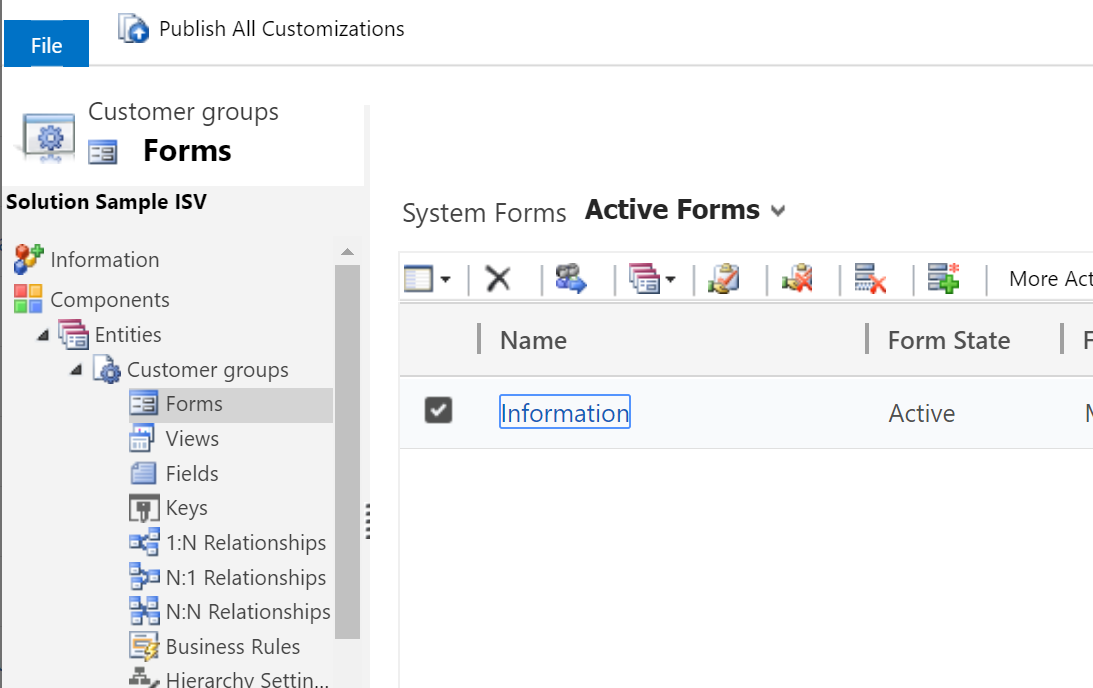
When you export the solution, it contains hard dependencies on the virtual entity that the MicrosoftOperationsERPVE solution generates.