本文介绍了配置组颁发机构源(SOA)、如何还原更改和限制的先决条件和步骤。 有关组权限来源的详细信息,请参阅 拥抱云优先策略:将组权限来源转换为云。
先决条件
| 要求 | DESCRIPTION |
|---|---|
| 角色 |
混合管理员 需要调用 Microsoft Graph API 来读取和更新组的 SOA。 应用程序管理员 或 云应用程序管理员 需要授予用户同意Microsoft Graph 资源管理器或用于调用 Microsoft Graph API 的应用所需的权限。 |
| 权限 | 对于调用 onPremisesSyncBehavior Microsoft图形 API 的应用,需要授予 Group-OnPremisesSyncBehavior.ReadWrite.All 权限范围。 有关详细信息,请参阅如何向 Graph 资源管理器或租户中的现有应用 授予此权限 。 |
| 所需的许可证 | Microsoft Entra Free 许可证。 |
| 同步客户端 | 在应用 SOA 之前,请确保你使用的是同步客户端支持的版本,以便客户端遵守 SOA 设置。 如果使用 Connect Sync,请升级到最低版本 2.5.76.0。 如果使用云同步,请升级到最低版本 1.1.1370.0。 |
| 预配到 AD DS (可选) | 若要将 SOA 转换后的组从 Microsoft Entra ID 预配到 Active Directory 域服务(AD DS),需要使用云同步。还需要完成步骤,以准备组,以便使用其原始 OU 路径预配到 AD DS。 有关详细信息,请参阅 准备组以进行 SOA 转换和配置。 |
下载 Connect Sync 客户端
下载 Connect Sync 内部版本 2.5.76.0 或更高版本。
转到控制面板中的 程序 ,确认Microsoft Entra Connect 同步的版本。
下载云同步客户端
下载云同步版本 1.1.1370.0 或更高版本。
了解如何标识代理的当前版本。
向应用授予权限
可以在 Microsoft Entra 管理中心或 Graph 资源管理器中授予权限。 此高特权作需要应用程序管理员或云应用程序管理员角色。 还可以使用 PowerShell 授予同意。 有关详细信息,请参阅 代表单个用户授予同意。
自定义应用
按照以下步骤向相应的应用授予 Group-OnPremisesSyncBehavior.ReadWrite.All 权限。 有关如何将新权限添加到应用注册和授予许可的详细信息,请参阅 更新Microsoft Entra ID 中的应用请求的权限。
使用 Microsoft Entra 管理中心向应用授予权限
以应用程序管理员或云应用程序管理员身份登录到 Microsoft Entra 管理中心。
浏览到 企业应用程序>应用名称。
选择“授予>租户名称的权限授予管理员同意”。
查看需要同意的权限列表,然后选择“ 接受”。
可以看到你授予的权限列表:

使用 Graph 资源管理器向应用授予权限
- 打开 Graph 资源管理器 ,以 应用程序管理员 或 云应用程序管理员身份登录。
- 选择配置文件图标,然后选择 “同意权限”。
- 搜索 Group-OnPremisesSyncBehavior,然后选择“ 许可 ”以获取权限。

为组的面向服务的体系结构转换和预配做好准备
如果要将组预配回 AD DS,请计划完成以下步骤,以保留 OU 路径,并在 “组预配”中将其设置为 AD 配置,其映射正确:
- 将 AD DS 组的组范围更改为通用。
- 为组创建面向租户的目录扩展属性。
- 将本地值(例如可分辨名称(DN)直接映射到扩展属性中。
- 使用 Microsoft Graph 验证属性值。
- 准备就绪后,转换权威来源 (SOA)。
- 使用自定义表达式确保云同步将组配置回具有相同 CN 和 OU 值的 AD DS。
有关详细信息,请参阅 使用 Microsoft Entra Cloud Sync 将组预配到 Active Directory 域服务。
为测试组转换 SOA
按照以下步骤转换测试组的 SOA:
在 AD 中创建安全组或启用邮件的通讯组,以测试和添加组成员。 还可以使用已同步到 Microsoft Entra ID 的组,方法是使用 Connect Sync。
运行以下命令以启动 Connect Sync:
Start-ADSyncSyncCycle验证该组是否以同步组的形式显示在 Microsoft Entra 管理中心。
使用Microsoft图形 API 转换组对象的 SOA(isCloudManaged=true)。 打开 Microsoft Graph 资源管理器 ,并使用适当的用户角色(例如组管理员)登录。
让我们检查现有的 SOA 状态。 我们尚未更新 SOA,因此 isCloudManaged 属性值应为 false。 将以下示例中的 {ID} 替换为组的对象 ID。 有关此 API 的详细信息,请参阅 Get onPremisesSyncBehavior。
GET https://graph.microsoft.com/v1.0/groups/{ID}/onPremisesSyncBehavior?$select=isCloudManaged
确认同步组为只读。 由于组在本地托管,因此云中对组的任何写入尝试都失败。 启用邮件的组的错误消息有所不同,但仍不允许更新。
注释
如果此 API 失败并出现 403,请使用“ 修改权限 ”选项卡授予对所需 Group.ReadWrite.All 权限的同意。
PATCH https://graph.microsoft.com/v1.0/groups/{ID}/
   {
     "DisplayName": "Group1 Name Updated"
   }
搜索组的Microsoft Entra 管理中心。 验证是否所有组字段都显示为灰色,并且源为 Windows Server AD DS。


现在可以将组的 SOA 更新为云管理。 在 Microsoft Graph 资源管理器中为要转换为云的组对象运行以下作。 有关此 API 的详细信息,请参阅 Update onPremisesSyncBehavior。
PATCH https://graph.microsoft.com/v1.0/groups/{ID}/onPremisesSyncBehavior
   {
     "isCloudManaged": true
   }
若要验证更改,请调用 GET 以验证 isCloudManaged 是否为 true。
GET https://graph.microsoft.com/v1.0/groups/{ID}/onPremisesSyncBehavior?$select=isCloudManaged
确认审核日志中的更改。 若要在 Azure 门户中访问审核日志,请打开 “管理Microsoft条目 ID>监视>审核日志,或搜索 审核日志。 选择“ 将颁发机构源从 AD 更改为云 ”作为活动。

检查是否可以在云中更新组。
PATCH https://graph.microsoft.com/v1.0/groups/{ID}/
   {
     "DisplayName": "Group1 Name Updated"
   }
打开Microsoft Entra 管理中心,并确认组 “源 ”属性为 Cloud。

连接同步客户端
运行以下命令以启动 Connect Sync:
Start-ADSyncSyncCycle若要查看转换后的 SOA 的组对象,请在 Synchronization Service Manager 中转到 连接器:

右键单击 Active Directory 域服务连接器。 按相对域名(RDN)设置“CN=<GroupName>”搜索组:

双击搜索的条目,然后选择 Lineage>元宇宙对象属性。

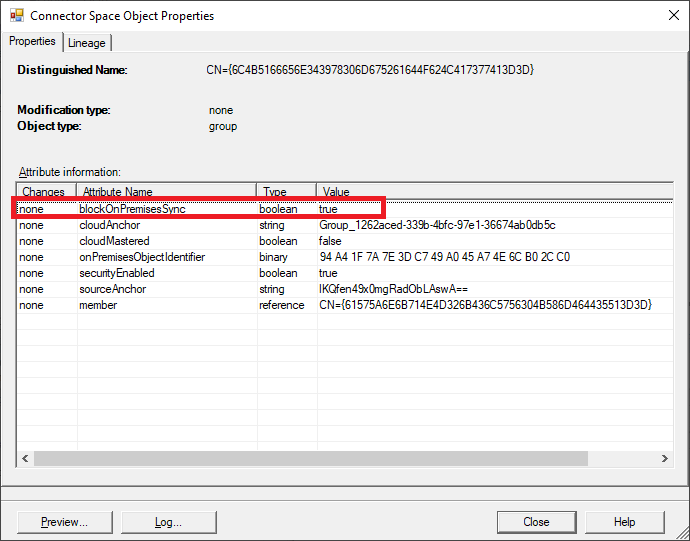
选择连接器,然后双击带有“CN={字母数字字符<}”的 >。
可以看到 blockOnPremisesSync 属性在 Entra ID 对象上设置为 true。 此属性值表示相应 AD DS 对象中所做的任何更改不会流向 Entra ID 对象:
让我们更新本地组对象。 我们将组名称从 SecGroup1 更改为 SecGroup1.1:

运行以下命令以启动 Connect Sync:
Start-ADSyncSyncCycle打开事件查看器并筛选事件 ID 6956 的应用程序日志。 保留此事件 ID 以通知客户对象未同步到云,因为该对象的 SOA 位于云中。

组 SOA 的批量更新
可以使用以下 PowerShell 脚本通过基于应用的身份验证自动执行组 SOA 更新。
<#
.SYNOPSIS
    Updates groups to set isCloudManaged parameter to true for on-premises synchronized groups.

.DESCRIPTION
    This script reads a file containing group Ids, checks each group's OnPremisesSyncEnabled property,
    and if true, calls the onPremisesSyncBehavior API to set isCloudManaged to true.

.PARAMETER FilePath
    Mandatory. Path to the file containing group Ids (one per line).

.PARAMETER WhatIf
    Boolean parameter. When true (default), shows what would be done without making actual changes.

.EXAMPLE
    .\Update-GroupSoA.ps1 -FilePath "C:\temp\groups.txt"
    .\Update-GroupSoA.ps1 -FilePath "C:\temp\groups.txt" -WhatIf $false

.NOTES
    Requires Microsoft.Graph PowerShell module to be installed and appropriate permissions.
    Required Graph permissions: Group.ReadWrite.All, Group-OnPremisesSyncBehavior.ReadWrite.All

    Input file should contain one group Id (GUID) per line.
#>

[CmdletBinding()]
param(
    [Parameter(Mandatory = $true)]
    [string]$FilePath,

    [Parameter(Mandatory = $false)]
    [bool]$WhatIf = $true
)

# Import Groups module
try {
    $moduleName = "Microsoft.Graph.Groups"
    if (-not (Get-Module -Name $moduleName)) {
        Import-Module -Name $moduleName
    }
    Write-Host "Successfully imported Microsoft Graph modules."
}
catch {
    Write-Error "Failed to import Microsoft Graph modules. Please ensure Microsoft.Graph PowerShell SDK is installed."
    Write-Host "Install with: Install-Module Microsoft.Graph -Scope CurrentUser"
    exit 1
}

# Connect to MS Graph
$context = Get-MgContext
if (-not $context) {
    Connect-MgGraph -Scopes 'Group.ReadWrite.All', 'Group-OnPremisesSyncBehavior.ReadWrite.All'
}

# Validate input file
if (-not (Test-Path $FilePath)) {
    Write-Error "Input file not found: $FilePath"
    exit 1
}

Write-Host "Starting group update process using $FilePath (WhatIf: $WhatIf)..."
Write-Host "-----------------------------------"

# Read group Ids from file
$groupGuids = Get-Content $FilePath

if ($groupGuids.Count -eq 0) {
    Write-Error "No group Ids found in the input file."
    exit 1
}

Write-Host "Found $($groupGuids.Count) group Ids to process."

# Initialize counters for summary
$totalGroups = $groupGuids.Count
$processedCount = 0
$updatedCount = 0
$skippedCount = 0
$errorCount = 0

# Process each group
foreach ($groupId in $groupGuids) {
    $processedCount++
    Write-Host "`nProcessing $groupId ($processedCount/$totalGroups)"

    try {
        $group = Get-MgGroup -GroupId $groupId -Property "Id,DisplayName,OnPremisesSyncEnabled"

        Write-Host "Group Name: $($group.DisplayName)"
        Write-Host "OnPremisesSyncEnabled: $($group.OnPremisesSyncEnabled)"

        if ($group.OnPremisesSyncEnabled -eq $true) {
            $actionDescription = "Set isCloudManaged to true for group '$($group.DisplayName)'"

            if ($WhatIf) {
                Write-Host "Skipping since WhatIf is enabled: $actionDescription"
                $skippedCount++
            }
            else {
                try {
                    # Call the onPremisesSyncBehavior API to set isCloudManaged to true
                    $body = @{
                        isCloudManaged = $true
                    }

                    $uri = "https://graph.microsoft.com/v1.0/groups/$groupId/onPremisesSyncBehavior"
                    Invoke-MgGraphRequest -Uri $uri -Method PATCH -Body ($body | ConvertTo-Json) -ContentType "application/json"

                    Write-Host "SUCCESS: Updated group to cloud-managed"
                    $updatedCount++
                }
                catch {
                    Write-Host "ERROR: Failed to update group: $_"
                    $errorCount++
                }
            }
        }
        else {
            Write-Host "SKIPPED: Group is not on-premises synchronized"
            $skippedCount++
        }
    }
    catch {
        Write-Host "ERROR: Failed to retrieve group information: $_"
        $errorCount++
    }
}

Write-Host "`n-----------------------------------"
Write-Host "SUMMARY"
Write-Host "-----------------------------------"
Write-Host "Total groups processed: $totalGroups"
Write-Host "Successfully updated: $updatedCount"
Write-Host "Skipped (not sync-enabled or WhatIf): $skippedCount"
Write-Host "Errors encountered: $errorCount"

Write-Host "`nScript completed."
转换 SOA 后属性的状态
下表说明了转换对象的 SOA 后 isCloudManaged 和 onPremisesSyncEnabled 属性的状态。
| 管理员步骤 | isCloudManaged 值 | onPremisesSyncEnabled 值 | 说明 |
|---|---|---|---|
| 管理员将对象从 AD DS 同步到 Microsoft Entra ID | false |
true |
当对象最初同步到 Microsoft Entra ID 时,onPremisesSyncEnabled 属性设置为true,isCloudManaged 设置为 false。 |
| 管理员将对象的授权源(SOA)转换为云 | true |
null |
管理员将对象的 SOA 转换为云后,isCloudManaged 属性将设置为 true 属性值。null |
| 管理员回滚 SOA作 | false |
null |
如果管理员将 SOA 转换回 AD,则 isCloudManaged 设置为 falseonPremisesSyncEnablednull,直到同步客户端接管对象。 |
| 管理员在 Microsoft Entra ID 中创建云本机对象 | false |
null |
如果管理员在 Microsoft Entra ID 中创建一个新的云原生对象, |
回滚 SOA 更新
重要
请确保回滚的组没有云引用。 在将组回滚到 AD DS 之前,请从 SOA 转换后的组中删除云用户,并从访问包中删除这些组。 同步客户端在下一个同步周期中接管对象。 有关用于识别和删除组中的云用户的示例 PowerShell 脚本,请参阅: 用于标识组的云成员(用户)的脚本。
可以运行此作来回滚 SOA 更新并将 SOA 还原到本地。
PATCH https://graph.microsoft.com/v1.0/groups/{ID}/onPremisesSyncBehavior
   {
     "isCloudManaged": false
   }

注释
isCloudManaged 的更改允许false在下次运行时连接同步接管同步范围内的 AD DS 对象。 直到下次运行 Connect Sync 时,才能在云中编辑对象。 仅在 API 调用和连接同步的下一个计划或强制运行完成后,SOA 的回滚才完成。
验证审核日志中的更改
选择“ 撤消从 AD DS 到云的颁发机构源”更改的活动:

在 Connect Sync 客户端中验证
运行以下命令以启动 Connect Sync:
Start-ADSyncSyncCycle在 同步服务器管理器 中打开对象(详细信息位于 Connect Sync Client 部分)。 可以看到Microsoft Entra ID 连接器对象的状态正在 等待导出确认 , blockOnPremisesSync = false,这意味着该对象 SOA 再次被本地接管。

局限性
AD DS 组不支持对帐:AD DS 管理员(或具有足够权限的应用程序)可以直接修改 AD DS 组。 如果组 SOA 被转换为该组,或者启用了将云安全组预配置到 AD DS,则这些本地 AD 更改不会反映在 Microsoft Entra ID 中。 当对云安全组进行更改时,组预配到 AD DS 后,会覆盖任何本地 AD DS 的更改。
不允许双重写入:当您开始从 Microsoft Entra ID 管理已转换群组(例如云组 A)的成员资格,并且将此群组作为嵌套群组预配到另一个 AD DS 群组(如 OnPremGroupB)时,如果 OnPremGroupB 处于同步到 Microsoft Entra ID 的范围内,进行同步时组 A 的成员资格引用将不会被同步。 成员身份引用不会同步,因为同步客户端不知道云组成员身份引用。 此行为是设计造成的。
无嵌套组的 SOA 转换:如果 AD DS 中存在嵌套组,并且你想要将父组或顶级组的 SOA 转换为 Microsoft Entra ID,则仅转换父组 SOA。 父组中的嵌套组仍然是 AD DS 组。 需要逐个转换任何嵌套组的 SOA。 建议从层次结构最低的组开始,然后在层次结构中向上移动。
不支持扩展属性(1-15):云安全组不支持扩展属性 1-15,在转换 SOA 后不受支持。
用于标识组的云成员(用户)的脚本
以下脚本可用于识别和删除组中的云用户:
<#
.SYNOPSIS
    Finds cloud users in an Entra ID group and optionally removes them.

.DESCRIPTION
    This script pages through all users in a specified Entra ID group, identifies cloud users
    (users where onPremisesSyncEnabled is not set to true), and prints their details.
    Optionally removes these users from the group if removeUsers is set to true.

.PARAMETER GroupId
    The GUID of the Entra ID group to process. This parameter is required.

.PARAMETER RemoveUsers
    Boolean flag to indicate whether to remove cloud users from the group.
    Default is false (optional parameter).

.EXAMPLE
    .\Find-CloudUsersInGroup.ps1 -GroupId "12345678-1234-1234-1234-123456789012"
    .\Find-CloudUsersInGroup.ps1 -GroupId "12345678-1234-1234-1234-123456789012" -RemoveUsers $true

.NOTES
    Requires Microsoft.Graph PowerShell module to be installed and appropriate permissions.
    Required Graph permissions: Group.Read.All, GroupMember.Read.All, User.Read.All and GroupMember.ReadWrite.All (if removing users)
#>

[CmdletBinding()]
param(
    [Parameter(Mandatory = $true)]
    [System.Guid]$GroupId,

    [Parameter(Mandatory = $false)]
    [bool]$RemoveUsers = $false
)

# Import required modules
try {
    $moduleName = "Microsoft.Graph.Groups"
    if (-not (Get-Module -Name $moduleName)) {
        Import-Module -Name $moduleName
    }
    $moduleName = "Microsoft.Graph.Users"
    if (-not (Get-Module -Name $moduleName)) {
        Import-Module -Name $moduleName
    }
    Write-Host "Microsoft Graph modules imported successfully"
}
catch {
    Write-Error "Failed to import Microsoft Graph modules. Please install Microsoft.Graph PowerShell module."
    Write-Error "Run: Install-Module Microsoft.Graph -Scope CurrentUser"
    exit 1
}

# Connect to MS Graph and verify the group exists
$context = Get-MgContext
if (-not $context) {
    Connect-MgGraph -Scopes 'Group.Read.All','GroupMember.Read.All','GroupMember.ReadWrite.All','User.Read.All'
}

$group = Get-MgGroup -GroupId $GroupId -Property "Id,DisplayName,MailEnabled"
Write-Host "Processing group: $($group.DisplayName) (ID: $GroupId)"

if ($group.MailEnabled -eq $true) {
    Write-Warning "The specified group is mail-enabled. Users can only be identified using this script. To remove users, use Exchange."
}

# Initialize counters
$totalUsers = 0
$cloudUsers = 0
$removedUsers = 0

Write-Host "`nStarting to process group users..."

try {
    # Get all group members that are users
    $usersInGroup = Get-MgGroupMemberAsUser -GroupId $GroupId -All -Property "Id"

    if ($usersInGroup.Count -ge 1) {
        $totalUsers = $usersInGroup.Count
        Write-Host "Found $totalUsers total users in the group"
    }
    else {
        Write-Host "No users found in the group"
        exit 0
    }
}
catch {
    Write-Error "Failed to retrieve group users: $($_.Exception.Message)"
    exit 1
}

Write-Host "`nProcessing each user to identify cloud users..."
Write-Host "-----------------"

# Process each user
foreach ($user in $usersInGroup) {
    try {
        # Get detailed user information
        $user = Get-MgUser -UserId $user.Id -Property "Id,DisplayName,UserPrincipalName,OnPremisesSyncEnabled"

        # Check if user is a cloud user
        $isCloudUser = -not $user.OnPremisesSyncEnabled

        if ($isCloudUser) {
            $cloudUsers++

            # Print cloud user details
            Write-Host "Cloud User Found:"
            Write-Host "  Object ID: $($user.Id)"
            Write-Host "  Display Name: $($user.DisplayName)"
            Write-Host "  User Principal Name: $($user.UserPrincipalName)"
            Write-Host "  OnPremisesSyncEnabled: $($user.OnPremisesSyncEnabled)"

            # Remove user from group if requested
            if ($RemoveUsers) {
                Remove-MgGroupMemberByRef -GroupId $GroupId -DirectoryObjectId $user.Id -ErrorAction Stop
                Write-Host "REMOVED from group"
                $removedUsers++
            }
        }
    }
    catch {
        Write-Warning "Failed to process User ID $($user.Id): $($_.Exception.Message)"
    }
}

# Summary
Write-Host "-----------------"
Write-Host "SUMMARY:"
Write-Host "-----------------"
Write-Host "Total group users processed: $totalUsers"
Write-Host "Cloud users identified: $cloudUsers"
if ($RemoveUsers) {
    Write-Host "Cloud users successfully removed: $removedUsers"
}

if ($cloudUsers -eq 0) {
    Write-Host "No cloud users found in this group."
}

Write-Host "`nScript completed."
此脚本作为示例提供,不应被视为有关如何识别和删除组成员身份的云用户的正式指南。
在管理单元内为 SOA 操作设定组的范围
要在管理单元中为权限源操作确定组的范围,请执行以下步骤:
创建用作组范围的单元。 有关创建单元的步骤,请参阅: 创建管理单元。
将该组添加为具有特定范围的混合身份管理员。

将组添加到单元。 有关此信息,请参阅: 将用户、组或设备添加到管理单元。
在单位范围内转移一个组的 SOA。 有关传输组 SOA 的指南,请参阅: 为测试组转换 SOA。
