Note
Access to this page requires authorization. You can try signing in or changing directories.
Access to this page requires authorization. You can try changing directories.
This article describes how to configure vaulted backups for Azure Data Lake Storage using Azure portal.
Prerequisites
Before you configure vaulted backup for Azure Data Lake Storage, ensure the following prerequisites are met:
- The storage account must be in a supported region and of the required types.
- The target account mustn't have containers with the names same as the containers in a recovery point; otherwise, the restore operation fails.
- Identify or create a Backup vault in the same region as the Azure Data Lake Storage account.
- Create a backup policy for Azure Data Lake Storage that defines the backup schedule and retention range.
- Grant permissions to the Backup vault on storage accounts.
Note
- This feature is currently available in specific regions only. See the supported regions.
- Vaulted backup restores are only possible to a different storage account.
For more information about the supported scenarios, limitations, and availability, see the support matrix.
Configure vaulted backup for the Azure Data Lake Storage
You can configure backup on multiple Azure Data Lake Storage.
To configure vaulted backup, follow these steps:
In the Azure portal, go to the Backup vault, and then select + Backup.
On the Configure Backup pane, on the Basics tab, review the Datasource type is selected as Azure Data Lake Storage.
On the Backup policy tab, under Backup policy, select the policy you want to use for data retention, and then select Next. If you want to create a new backup policy, select Create new. learn how to create a backup policy.
On the Datasources tab, Select Add.

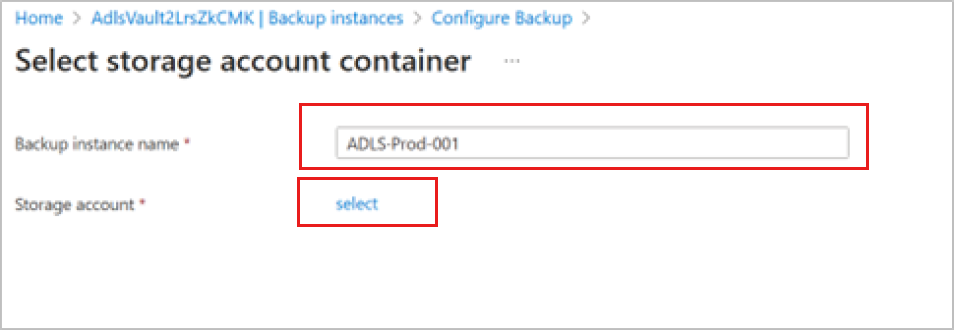
On the Select storage account container pane, provide the Backup instance name, and then click select under Storage account.
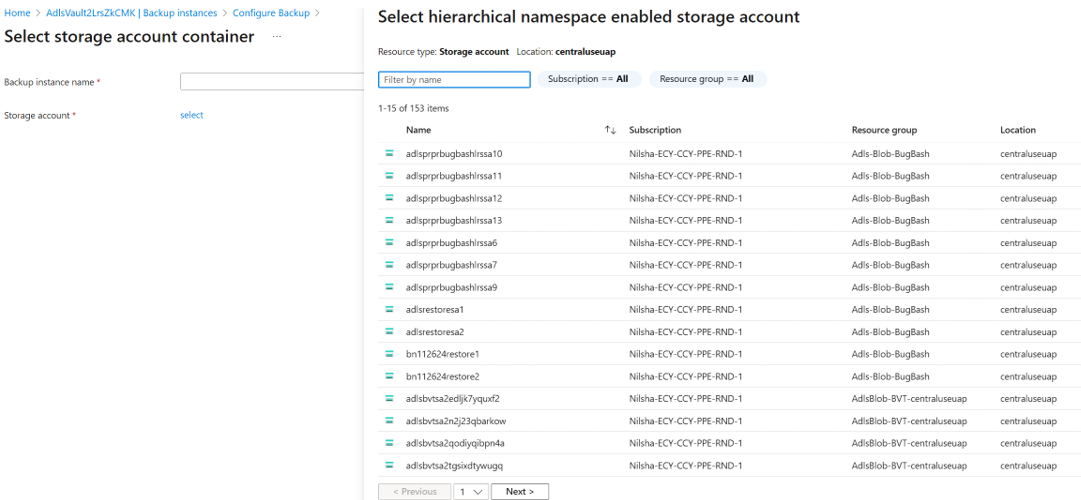
On the Select hierarchical namespace enabled storage account pane, select the storage accounts with Azure Data Lake Storage across subscriptions from the list that are in the region same as the vault.
On the Select storage account container pane, you can back up all containers or select specific ones.
After you add the resources, backup readiness validation starts. If the required roles are assigned, the validation succeeds with the Success message.
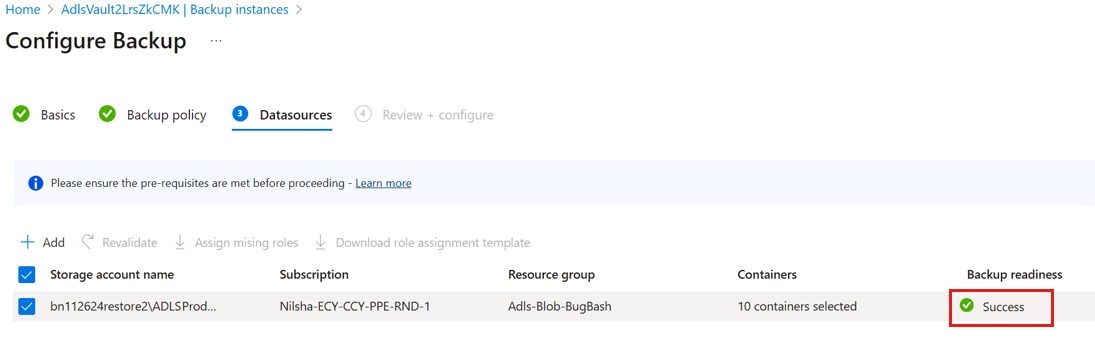
Error messages appear when access permissions are missing. See the Grant permissions section.
Validation errors appear if the selected storage accounts don't have the Storage Account Backup Contributor role. Review the error messages and take necessary actions.
Error Cause Recommended action Role assignment not done The Storage account backup contributor role and the other required roles for the storage account to the vault aren't assigned. Select the roles, and then select Assign missing roles to automatically assign the required role to the Backup vault and trigger an auto revalidation.
If the role propagation takes more than 10 minutes, then the validation might fail. In this scenario, you need to wait for a few minutes and select Revalidate to retry validation.
You need to assign the following types of permissions for various operations:
- Resource-level permissions: For backing up a single account within a resource group.
- Resource group or Subscription-level permissions: For backing up multiple accounts within a resource group.
- Higher-level permissions: For reducing the number of role assignments needed.
The maximum count of role assignments supported at the subscription level is 4,000. Learn more about Azure Role-Based Access Control Limits.Insufficient permissions for role assignment The vault doesn't have the required role to configure backups, and you don't have enough permissions to assign the required role. Download the role assignment template, and then share with users with permissions to assign roles for storage accounts. Review the configuration details, and then select Configure Backup.

You can track the progress of the backup configuration under Backup instances. After the configuration of backup is complete, Azure Backup triggers the backup operation as per the backup policy schedule to create the recovery points. Backup might take a minimum of 30–40 minutes, as backups rely on snapshots, which are taken in every 15 minutes and require two snapshots to detect changes before triggering the backup.
Learn how to monitor backup jobs.
This article describes how to configure vaulted backups for Azure Data Lake Storage using PowerShell.
Prerequisites
Before you configure vaulted backup for Azure Data Lake Storage, ensure that the following prerequisites are met:
- Install the Azure PowerShell version Az 14.6.0. Learn how to install Azure PowerShell.
- Identify or create a Backup vault to configure Azure Data Lake Storage backup.
- Review the supported scenarios for Azure Data Lake Storage backup.
- Create a backup policy for Azure Data Lake Storage that defines the backup schedule and retention range.
Configure vaulted backup for the Azure Data Lake Storage using PowerShell
After the vault and backup policy are created, configure vaulted backup for Azure Data Lake Storage by reviewing the following sections:
- Fetch the ARM ID of the storage account containing the Data Lake Storage to be protected
- Grant permissions to the Backup vault
- Trigger the request for backup configuration
Fetch the ARM ID of the storage account containing the Data Lake Storage to be protected
The Azure Resource Manager (ARM) ID of the storage account is required to configure vaulted backup for Azure Data Lake Storage. This ID identifies the storage account that contains the Data Lake Storage you want to protect. For example, use the storage account PSTestSA in the resource group adlsrg in a different subscription.
To fetch the ARM ID of the storage account, run the following example cmdlet:
$SAId = "/subscriptions/xxxxxxxx-xxxx-xxxx-xxxx/resourcegroups/adlsrg/providers/Microsoft.Storage/storageAccounts/PSTestSA"
Grant permissions to the Backup vault on the storage account
The Backup vault requires permissions on the storage account to enable backups on Data Lake Storage present within the storage account. The system-assigned managed identity of the vault is used for assigning such permissions.
You need to assign the required permissions via Azure role-based access control (RBAC) to the created vault (represented by vault Managed System Identity (MSI)) and the relevant storage account.
Learn how to grant permissions to the Backup vault using Azure portal for Azure Data Lake Storage.
Trigger the request for vaulted backup configuration
After all the relevant permissions are set, configure Azure Date Lake Storage vaulted backup by running the following cmdlets:
Create a new backup configuration object to specify the set of containers you want to back up.
To back up all containers, pass the
-IncludeAllContainerparameter. For specific containers, pass the list of containers to the-VaultedBackupContainerparameter.$backupConfig=New-AzDataProtectionBackupConfigurationClientObject -DatasourceType AzureDataLakeStorage -IncludeAllContainer -StorageAccountResourceGroupName "StorageRG" -StorageAccountName "testpscmd"Prepare the request by using the relevant vault, policy, storage account, and the backup configuration object you created using the
Initialize-AzDataProtectionBackupInstancecmdlet.$instance=Initialize-AzDataProtectionBackupInstance -DatasourceType AzureDataLakeStorage -DatasourceLocation $TestBkpVault.Location -PolicyId $adlsBkpPol.Id -DatasourceId $SAId -BackupConfiguration $backupConfigSubmit the request to trigger backup configuration using the
New-AzDataProtectionBackupInstancecmdlet.New-AzDataProtectionBackupInstance -ResourceGroupName "StorageRG" -VaultName $TestBkpVault.Name -BackupInstance $instance
This article describes how to configure vaulted backups for Azure Data Lake Storage using Azure CLI.
Prerequisites
Before you configure vaulted backup for Azure Data Lake Storage, ensure that the following prerequisites are met:
- Identify or create a Backup vault to configure Azure Data Lake Storage backup.
- Review the supported scenarios for Azure Data Lake Storage backup.
- Create a backup policy for Azure Data Lake Storage that defines the backup schedule and retention range.
Configure vaulted backup for the Azure Data Lake Storage using Azure CLI
After the vault and backup policy are created, configure vaulted backup for Azure Data Lake Storage by reviewing the following sections:
- Fetch the ARM ID of the storage account containing the Data Lake Storage to be protected
- Grant permissions to the Backup vault
- Trigger the request for backup configuration
Important
After a storage account is configured for Data Lake Storage backup, a few capabilities, such as change feed and delete lock, are affected. Learn more.
Fetch the ARM ID of the storage account containing the Data Lake Storage to be protected
The Azure Resource Manager (ARM) ID of the storage account is required to configure vaulted backup for Azure Data Lake Storage. This ID identifies the storage account that contains the Data Lake Storage you want to protect. For example, use the storage account CLITestSA in the resource group adlsrg in a different subscription present in the Southeast Asia region.
TO fetch the ARM ID of the storage account, run the following example command:
"/subscriptions/xxxxxxxx-xxxx-xxxx-xxxx/resourcegroups/adlsrg/providers/Microsoft.Storage/storageAccounts/CLITestSA"
Grant permissions to the Backup vault on the storage account
The Backup vault requires permissions on the storage account to enable backups on Data Lake Storage present within the storage account. The system-assigned managed identity of the vault is used for assigning such permissions.
You need to assign the required permissions via Azure role-based access control (RBAC) to the created vault (represented by vault Managed System Identity (MSI)) and the relevant storage account.
Learn how to grant permissions to the Backup vault using Azure portal for Azure Data Lake Storage.
Trigger the request for vaulted backup configuration
After all the relevant permissions are set, configure Azure Date Lake Storage vaulted backup by running the following example cmdlets:
Prepare the request by using the relevant vault, policy, storage account, and the backup configuration object you created using the
az dataprotection backup-instance initializecommand.az dataprotection backup-instance initialize --datasource-type AzureDataLakeStorage -l southeastasia --policy-id "/subscriptions/aaaa0a0a-bb1b-cc2c-dd3d-eeeeee4e4e4e/resourceGroups/testBkpVaultRG/providers/Microsoft.DataProtection/backupVaults/TestBkpVault/backupPolicies/AdlsPolicy1" --datasource-id "/subscriptions/aaaa0a0a-bb1b-cc2c-dd3d-eeeeee4e4e4e/resourcegroups/adlsrg/providers/Microsoft.Storage/storageAccounts/CLITestSA" > backup_instance.jsonSubmit the request to trigger backup configuration using the
az dataprotection backup-instance createcommand.az dataprotection backup-instance create -g adlsrg--vault-name TestBkpVault --backup-instance backup_instance.jsonThe following example JSON configures an Azure Data Lake Storage backup for a specified storage account with specified policy and container list.
{
    "properties": {
        "friendlyName": " adlsbackup",
        "dataSourceInfo": {
            "resourceID": "/subscriptions/ xxxxxxx-xxxx-xxxx-xxxx /resourceGroups/adlsrg/providers/Microsoft.Storage/storageAccounts/adlsbackup",
            "resourceUri": "/subscriptions/ xxxxxxx-xxxx-xxxx-xxxx /resourceGroups/adlsrg/providers/Microsoft.Storage/storageAccounts/adlsbackup",
            "datasourceType": "Microsoft.Storage/storageAccounts/adlsBlobServices",
            "resourceName": " adlsbackup",
            "resourceType": "Microsoft.Storage/storageAccounts",
            "resourceLocation": "francesouth",
            "objectType": "Datasource"
        },
        "policyInfo": {
            "policyId": "/subscriptions/ xxxxxxxx-xxxx-xxxx-xxxx/resourceGroups/adlsrg/providers/Microsoft.DataProtection/backupVaults/ TestBkpVault/backupPolicies/AdlsPolicy1",
            "policyParameters": {
                "backupDatasourceParametersList": [
                    {
                        "containersList": [
                            "container7",
                            "container8"
                        ],
                        "objectType": "AdlsBlobBackupDatasourceParameters"
                    }
                ]
            }
        },
        "protectionStatus": {
            "status": "ProtectionConfigured"
        },
        "currentProtectionState": "ProtectionConfigured",
        "provisioningState": "Succeeded",
        "objectType": "BackupInstance"
    },
    "id": "/subscriptions/ xxxxxxxx-xxxx-xxxx-xxxx /resourceGroups/adlsrg/providers/Microsoft.DataProtection/backupVaults/ TestBkpVault/backupInstances/adlsbackup",
    "name": " adlsbackup",
    "type": "Microsoft.DataProtection/backupVaults/backupInstances"
}