Note
Access to this page requires authorization. You can try signing in or changing directories.
Access to this page requires authorization. You can try changing directories.
Applies to: ✅ Warehouse in Microsoft Fabric
You can migrate tables to Fabric Data Warehouse with surrogate key columns after adapting to the differences in the IDENTITY implementation in Fabric Data Warehouse. This article outlines a robust migration strategy to help you bridge this gap and successfully move your schema and data into Fabric Data Warehouse.
Migrating databases to Fabric Data Warehouse presents unique challenges for organizations that rely on existing surrogate columns, such as IDENTITY or SEQUENCE functions in the SQL Database Engine:
- Unlike traditional SQL Server environments, Fabric Data Warehouse uses a distributed model for generating identity values, which ensures uniqueness but doesn't guarantee sequential order.
IDENTITYin Fabric Data Warehouse does not supportIDENTITY_INSERT. You cannot directly insert existing values.IDENTITYin Fabric Data Warehouse does not support configuring theSEEDorINCREMENT.IDENTITYvalues are unique and automatically managed.
- Only the bigint data type is supported for
IDENTITYcolumns in Fabric Data Warehouse. - Fabric Data Warehouse doesn't enforce key constraints.
Step-by-step migration process
To illustrate the approach described in this article, consider two tables: a Customers table, and an Orders table. The Orders table references the Customers table using the CustomerID column.
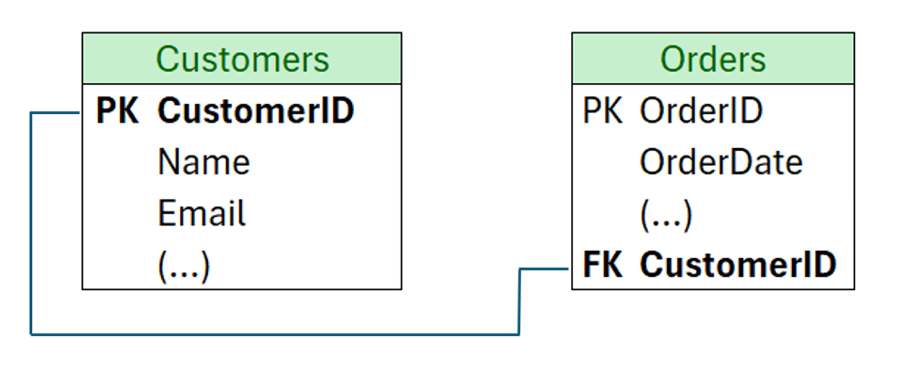
To migrate these tables from the source into Fabric Data Warehouse tables that use IDENTITY columns, we need to rehydrate the destination table with new IDs and update the referenced table. We can achieve that by using the following strategy:
- Load data from source tables into staging tables in Fabric Data Warehouse that don't use
IDENTITYcolumns. - Load data from staging tables into final tables that use an
IDENTITYcolumn, but copy the original data of the ID column from the staging table into a new, temporary column in the final tables. UPDATEreferences in related tables.
Example: migrate data from tables that use IDENTITY columns to Fabric Data Warehouse
The next steps describe how this strategy can be accomplished using IDENTITY columns in Fabric Data Warehouse.
Step 1: Load source data into staging tables
Begin by creating staging tables in Fabric Data Warehouse that mirror the schema of your source tables, but create the staging tables with IDENTITY columns.
Load your source data into these staging tables, including the original identity values.
Step 2: Insert data into destination tables and map legacy IDENTITY values
Next, insert data from the staging tables into the destination tables in your warehouse.
The destination table should use IDENTITY on the key column.
During this step, map the original identity values from the staging table to a new column in the destination table.

For example, when migrating a Customers table, you could use a statement like:
-- Pseudo code: replace ... with your own column list
INSERT INTO dbo.Customers (Name, Email, ... , LegacyCustomerID)
SELECT s.Name, s.Email, ..., s.CustomerID
FROM dbo.Staging_Customers AS s;
This approach preserves the original identity value in the LegacyCustomerID column for use in subsequent steps.
Repeat this step for all tables in your warehouse that use IDENTITY columns.
Step 3: Update foreign key relationships using legacy identity values
For tables with foreign keys referencing an IDENTITY column, join the staging version of the referenced table using the temporary legacy ID column to obtain the new Fabric Data Warehouse-generated IDs.

For example, when migrating an Orders table that references Customers:
INSERT INTO dbo.Orders (OrderDate, ... , CustomerID)
SELECT o.OrderDate, ..., c.CustomerID
FROM dbo.Staging_Orders AS o
INNER JOIN dbo.Customers AS c
ON o.CustomerID = c.LegacyCustomerID;
This approach ensures that relationships between tables are preserved even as new IDENTITY produces new IDs moving forward.
Step 4 (Optional): Clean up temporary columns
After confirming that all relationships are correctly mapped and data integrity is maintained, if desired, you can drop the legacy ID columns from your destination tables:
ALTER TABLE Orders
DROP COLUMN LegacyCustomerID;
Optionally, keep the columns like LegacyCustomerID in the final table for future audits, lineage, or troubleshooting reasons.