Note
Access to this page requires authorization. You can try signing in or changing directories.
Access to this page requires authorization. You can try changing directories.
You can import employee information from non-Microsoft systems into Microsoft 365 for use across Microsoft 365 and Viva.
Note
Organizational data must be imported by the Organizational Data Source Administrator. Any pre-existing app-specific admin roles aren't automatically converted to the organizational data source admin role. You need to assign the role. Learn more about the organizational data admin role.
To import your data, you populate a .csv template with the attributes (or information) about your users that you want to include and then upload the file through the Microsoft 365 admin center. Here are the steps to get started:
- Download a .csv template.
- Structure the organizational data.
- Import your organizational data for the first time.
- Update or make other changes to your data.
- Make retroactive updates to existing data.
Step 1 - Download a .csv template
Sign in to the Microsoft 365 admin center as a user with Organizational Data Source Administrator permissions.
On Organizational Data in Microsoft 365 page (under Setup > Migration and imports), select Get started (if this instance is the first time you're importing data) or New import.
On the Select connection type page, select Start CSV setup.
Select the apps and services with which to share data, and select Next to move forward.
On the Prepare organizational data page, select Download CSV template.
Note
You can also use organizational data exported from another system, such as your HR software, as your starting point, as described in Get an export of organizational data.
Step 2 - Structure the organizational data
Now that you have your .csv file starting point, add the organizational data that you want to use in Microsoft 365, and then save the file.
Sample data file
Here's an example snippet of a valid .csv file:
Microsoft_PersonEmail,Microsoft_ManagerEmail,Microsoft_LevelDesignation,Microsoft_Organization,Microsoft_Layer,Microsoft_CompanyOfficeCity
Emp1@contoso.com,Mgr1@contoso.com,Junior IC,Sales,8,Seattle
Emp2@contoso.com,Mgr1@contoso.com,Junior IC,Sales,8,Seattle
Emp3@contoso.com,Mgr2@contoso.com,Manager,Sales,7,Seattle
Emp4@contoso.com,Mgr3@contoso.com,Support,Sales,9,New York
Emp5@contoso.com,Mgr3@contoso.com,Support,Sales,9,New York
Emp6@contoso.com,Mgr3@contoso.com,Support,Sales,9,New York
For more information about attributes, see the Attribute reference.
Step 3 - Import your organizational data for the first time
After you create a .csv file with your data, the next step is to import the data, either from your local files on your computer or from a SharePoint site.
Upload the .csv file from your local files on your computer
After you create the .csv file with your data, you can upload it directly from your local files on your computer.
Note
There's a 25-MB limit on files uploaded directly from your local files. If your .csv file is larger, upload it first to SharePoint and then import it from there.

Upload the .csv file from SharePoint
First you need to upload the file from your local computer to a secure SharePoint location; then you import the data.
Upload the file to SharePoint
Use the following steps to upload your data to SharePoint. You can upload a file up to 2 GB in size.
Be the owner of a SharePoint site. If you're not an owner, you must have member access to a SharePoint site. Don't use custom domain or on-prem SharePoint sites.
Upload the organization data file to a folder you can access. You are listed as the file owner.
Note
The admin who uploads the data must be the user who uploaded the file to the SharePoint site.
Copy the file path as described in the instructions in the section that follows.
SharePoint instructions
Open the SharePoint site library.
Select Upload, and then select Files.

Navigate to the location where you saved the .csv file, and then select Open.
You can also use drag and drop to upload the file.
Before you import the data into Viva, you need the path to the file on SharePoint, in this format: https://domain.sharepoint.com/sites/sitename/Documents/foldername/filename.csv. Use the following steps to get the path to your file - the path isn't the same as the URL that you see in your browser when you view the file.
Select the ellipses (...) next to the file and then select Details.

Find the Path value, and then select the copy icon.
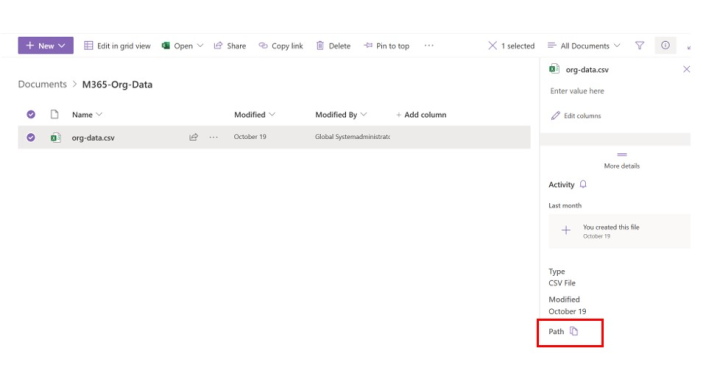
Note
Be sure to follow these steps to get the path to the file. This is a different path than what's visible in the URL field of a browser when you view the .csv file in SharePoint.
Import the data into Microsoft 365
Now you're ready to import the data.
Start the import from the Data Connections page on the Organizational Data in Microsoft 365 page (Home > Setup > Migration and imports > Organizational Data in Microsoft 365 > Data Connections).
Select Get started (if this is the first time you're importing data) or New import (if you haven't yet imported data).
On the Select connection type page, select Start CSV setup.
Select the apps and services with which to share data, and select Next to move forward.
On the Prepare organizational data page, select Next to move forward.
On the Import data page, choose between "Import from Sharepoint" and "Import locally."
- Import from Sharepoint (recommended): Enter the SharePoint location where you saved your .csv file. (If you copied the location at the end of the upload step, paste it here.)
- Import locally: Upload directly from your local computer.
Select Next.
Follow the on-screen prompts to import attribute headers, map attributes, and give attribute access. Select Next to move forward. Learn more about how to map attributes and set access.
Review your connection details, then select Begin Validation.
Your organizational data is validated against the requirements for use with Viva and Microsoft 365 services. Validation takes a few hours; however it can take up to three days for your complete data upload to be available in the profile store. You can check the validation status on the Organizational data page in the admin center. When the validation is complete, you see a message that your data is in use and managed by Viva and Microsoft 365.
Each end user's organizational data is stored in that end user's mailbox and respects the data residency rules for Exchange Online (as described in Data Residency for Exchange Online).
Subsequent uploads
To import new data, you'll need to set up another connection.
Note
For .csv imports, on the attribute mapping page, the values under the Imported attributes are from the file you imported. It doesn't show a record of any previously imported data.
Follow the on-screen prompts to make your changes, using the same process for the first upload described in the preceding section.
Update or make other changes to your data
The Organizational Data Source Administrator can update or delete organizational data.
To update or delete an end user's organizational data, create and upload a new .csv file containing only the users whose data you want to update or delete.
- To update a value, include all of the attributes that you want to update. Provide a different value for any attribute that you want to change. If you include an attribute but don't provide a value (and don't set it to an empty string), the current value in the Microsoft 365 User Profile is used, and the value isn't updated. New uploads merge with previous data and don't overwrite that data.
- To delete all of the data for a user, enter the empty string or integer value for all of their attributes and set the Microsoft_Layer attribute to -1. To delete Microsoft_ManagerEmail, set the manager email to a nonexistent email address within your tenant, for example, "noname@contoso.com".
Note
If you use Excel to edit the .csv file, use three single quotes (''') instead of two ('')- Excel sees a single quote (') as the escape character.
Make retroactive updates to existing data
You can also make retroactive updates to existing data you've uploaded.
For example, let's say your company hired a new manager for the sales team on October 2, 2024, but the change wasn't reflected in your organizational data until now. Reports for Q4 2024 aren't accurate because they show the old manager. You'd like to update the data to show the correct manager as of October 2, 2024, so the reports can accurately represent historical reporting lines.
Note
You can only update existing data using .csv files, and only for Viva Insights data.
Steps:
Prepare a .csv file with the impacted employees and the correct information. For example:
- Microsoft_PersonEmail,Microsoft_ManagerEmail
- alex.jones@contoso.com,new.manager@contoso.com
Go to New Import > Select connection type.
Select Start csv import, then select Historical import.

Review data access for the updated data, which can only be sent to Viva Insights.

On the Import data page, set the File valid as of date. In this example, the date would be 2024/10/02.

Complete your upload and select Submit.

