Note
Access to this page requires authorization. You can try signing in or changing directories.
Access to this page requires authorization. You can try changing directories.
Imagine asking GitHub Copilot "Show me all sales from last quarter" and having it automatically query your Fabric data warehouse, understand the schema, and return results—all without writing a single line of GraphQL. This tutorial shows you how to make that possible.
In this tutorial, you build a local GraphQL MCP server that acts as a bridge between AI agents and your Microsoft Fabric data. By the end, you have a working development server that enables AI assistants like GitHub Copilot, Claude, and other AI agents to naturally query your Fabric data using conversational language.
What you'll accomplish:
- Set up authentication so your GraphQL MCP server can securely access Fabric
- Enable schema introspection so AI agents can discover your data structure automatically
- Deploy a local GraphQL MCP server that translates natural language into GraphQL queries
- Connect GitHub Copilot or other AI tools to query your data conversationally
What is the Model Context Protocol (MCP)?
The Model Context Protocol (MCP) is a standard for connecting AI assistants to the systems where data lives, including content repositories, business tools, and development environments. Its aim is to help frontier models produce better, more relevant responses. Think of MCP like a USB-C port for AI applications. Just as USB-C provides a standardized way to connect your devices to various peripherals and accessories, MCP provides a standardized way to connect AI models to external data sources and tools.
Major AI platforms including OpenAI, Microsoft Copilot Studio, and Microsoft Foundry adopted MCP as a standard way to integrate AI agents with external systems. This makes MCP an ideal choice for connecting AI agents to your Microsoft Fabric data.
Why GraphQL is ideal for MCP
GraphQL is well-suited for MCP integrations because:
- Schema introspection: AI agents can automatically discover available data structures and relationships directly from the GraphQL schema
- Flexible queries: Agents can request exactly the data they need in a single request
- Type safety: Strong typing helps AI agents understand data formats and constraints
- Efficient data fetching: Reduces over-fetching and under-fetching of data
Microsoft Fabric's API for GraphQL makes it easy to expose your Fabric lakehouses, Data Warehouses, and databases to AI agents through a standardized GraphQL interface. While API for GraphQL already provides powerful querying capabilities, setting up a connection for AI agents might not be as straightforward as it could be.
With a simple local GraphQL MCP server, developers can use AI agents to discover their Fabric data structure, understand what's available, and query it by using natural language – all through the standardized MCP interface. Conveniently, you don't need to define a separate MCP tool in the server for each GraphQL type, query, or mutation. The GraphQL MCP server introspects the GraphQL schema empowering AI agents to understand all available types and operations from the get-go.
Prerequisites
Before you begin this tutorial, make sure you have:
- A Microsoft Fabric workspace with appropriate permissions. A workspace admin role is needed to configure service principals and enable introspection.
- An API for GraphQL item created and configured. See Create and add data to an API for GraphQL or Create GraphQL API from your SQL database in the Fabric portal.
- Node.js installed on your development machine (includes npm)
- Visual Studio Code installed on your development machine
Note
Not an admin? Some steps in this tutorial require admin permissions. If you're not an admin, you can still complete most of the tutorial by asking your admin to help with specific tasks. Each step that requires admin permissions is clearly marked.
Step 1: Configure service principal access
What you're doing: Setting up non-interactive authentication credentials so your GraphQL MCP server can access Fabric without requiring a user to sign in each time.
Why this matters: The GraphQL MCP server runs as a background service that AI agents call automatically. It needs its own identity (a service principal) with credentials to authenticate to Fabric on behalf of your application, not on behalf of a specific user.
Follow the complete guide at Use Service Principals with Fabric API for GraphQL to:
- Create an Azure App Registration (any user with permissions to create app registrations in Microsoft Entra ID)
- Add a client secret under Certificates & secrets (any user)
- Enable service principals in your tenant settings (requires Fabric tenant admin)
- Grant permissions to your GraphQL API and workspace (requires workspace admin or contributor role)
Tip
Not an admin? You can complete the first two items yourself. For the tenant setting, ask your Fabric tenant admin to enable "Service principals can use Fabric APIs" under Admin portal > Tenant settings > Developer settings. For workspace permissions, ask your workspace admin to grant your service principal access to the workspace or specific GraphQL API.
As you complete the setup, capture these three values for the GraphQL MCP server configuration:
- Tenant ID: Found in Microsoft Entra ID under Overview > Tenant ID
- Client ID: Found in your App Registration under Overview > Application (client) ID
- Client Secret: The secret value displayed when you create a new client secret (copy immediately—it's only shown once)
Step 2: Enable GraphQL introspection (requires workspace admin)
What you're doing: Enabling introspection allows the GraphQL MCP server to ask your GraphQL API "What data do you have?" and receive a complete description of all available types, fields, and relationships.
Why this matters: This is the "magic" that makes natural language queries possible. When you ask Copilot "Show me customers," the AI agent first uses introspection to discover that a customers type exists, what fields it has, and how to query it. Without introspection, you'd need to manually document your entire schema for the AI.
Important
Introspection must be enabled for the GraphQL MCP server to work. This is disabled by default in Fabric for security reasons. Only workspace admins can enable introspection. If you're not an admin, ask your workspace admin to complete this step.
Follow the complete guide at Microsoft Fabric API for GraphQL Introspection and Schema Export to:
- Enable introspection in your API settings
- Understand how introspection queries work
- Learn about schema export options
Once introspection is enabled, the GraphQL MCP server can query your schema structure and make it available to AI agents.
Step 3: Set up the GraphQL MCP server
What you're doing: Installing and configuring a local Node.js server that implements the Model Context Protocol. This server acts as a translator between AI agents and your Fabric GraphQL API.
Why this matters: The MCP server provides a standardized interface that AI agents understand. When an AI agent connects, it can discover what tools are available (introspection and querying), call those tools, and receive responses—all without you writing custom integration code for each AI platform.
Now that you have authentication credentials (Step 1) and introspection enabled (Step 2), you're ready to configure the server to use them.
Clone the sample repository
git clone https://github.com/microsoft/fabric-samples.git
cd fabric-samples/docs-samples/data-engineering/GraphQL/MCP
Install dependencies
npm install
Configure environment variables
Create a .env file in the project root with your configuration:
MICROSOFT_FABRIC_API_URL=https://your-fabric-endpoint/graphql
MICROSOFT_FABRIC_TENANT_ID=your_tenant_id_here
MICROSOFT_FABRIC_CLIENT_ID=your_client_id_here
MICROSOFT_FABRIC_CLIENT_SECRET=your_client_secret_here
SCOPE=https://api.fabric.microsoft.com/.default
Replace the placeholder values with:
- MICROSOFT_FABRIC_API_URL: Your GraphQL endpoint from the Fabric portal
- MICROSOFT_FABRIC_TENANT_ID: Your Azure tenant ID
- MICROSOFT_FABRIC_CLIENT_ID: Your app registration client ID
- MICROSOFT_FABRIC_CLIENT_SECRET: Your app registration client secret
Start the GraphQL MCP server
node FabricGraphQL_MCP.js
The server starts on http://localhost:3000 and display:
Microsoft Fabric GraphQL MCP server listening on port 3000
API URL: https://your-fabric-endpoint/graphql
Scope: https://api.fabric.microsoft.com/.default
Available MCP tools
The GraphQL MCP server provides two main tools:
introspect-schema
- Purpose: Retrieves the complete GraphQL schema
- Parameters: None
- Usage: Must be called first before making queries
query-graphql
- Purpose: Executes GraphQL queries against your Fabric data
- Parameters:
query(required): The GraphQL query stringvariables(optional): GraphQL variables object
- Usage: For all data retrieval and manipulation operations
Understanding the workflow
The typical GraphQL MCP workflow follows this pattern:
- Schema Discovery: AI agent must first call the
introspect-schematool to understand the schema and available data - Query Planning: Agent analyzes your natural language request and the GraphQL schema
- Query Generation: Agent creates appropriate GraphQL queries
- Execution: Agent calls the
query-graphqltool with the generated queries - Response Processing: Agent formats and presents the results
Step 4: Test the GraphQL MCP server
What you're doing: Verifying that your MCP server can authenticate to Fabric, retrieve your schema, and execute queries—before connecting AI agents.
Why this matters: Testing manually ensures everything is configured correctly. If these tests pass, you know the AI agents are able to connect successfully in Step 5.
Verify server health
First, confirm the server is running and can authenticate to Fabric.
Using PowerShell:
Invoke-RestMethod -Uri "http://localhost:3000/health" -Method Get
Using cURL:
curl http://localhost:3000/health
You should receive a response indicating the server is running, similar to:
{"status":"healthy","server":"Microsoft Fabric GraphQL MCP Server","hasToken":true,"tokenExpiry":"2025-06-30T23:11:36.339Z"}
Test schema introspection
Next, verify that the server can retrieve your GraphQL schema through introspection. This calls the introspect-schema MCP tool.
Using PowerShell:
$headers = @{
    "Content-Type" = "application/json"
    "Accept" = "application/json, text/event-stream"
}

$body = @{
    jsonrpc = "2.0"
    id = 1
    method = "tools/call"
    params = @{
        name = "introspect-schema"
        arguments = @{}
    }
} | ConvertTo-Json -Depth 3

Invoke-RestMethod -Uri "http://localhost:3000/mcp" -Method Post -Body $body -Headers $headers
Using cURL:
curl -X POST http://localhost:3000/mcp \
  -H "Content-Type: application/json" \
  -H "Accept: application/json, text/event-stream" \
  -d '{
    "jsonrpc": "2.0",
    "id": 1,
    "method": "tools/call",
    "params": {
      "name": "introspect-schema",
      "arguments": {}
    }
  }'
This should return your GraphQL schema definition.
Test a GraphQL query
Finally, test executing an actual GraphQL query through the MCP server. This example queries for all type names in your schema using the query-graphql MCP tool.
Using PowerShell:
$headers = @{
    "Content-Type" = "application/json"
    "Accept" = "application/json, text/event-stream"
}

$body = @{
    jsonrpc = "2.0"
    id = 2
    method = "tools/call"
    params = @{
        name = "query-graphql"
        arguments = @{
            query = "query { __schema { types { name } } }"
        }
    }
} | ConvertTo-Json -Depth 4

Invoke-RestMethod -Uri "http://localhost:3000/mcp" -Method Post -Body $body -Headers $headers
Using cURL:
curl -X POST http://localhost:3000/mcp \
  -H "Content-Type: application/json" \
  -H "Accept: application/json, text/event-stream" \
  -d '{
    "jsonrpc": "2.0",
    "id": 2,
    "method": "tools/call",
    "params": {
      "name": "query-graphql",
      "arguments": {
        "query": "query { __schema { types { name } } }"
      }
    }
  }'
This returns a list of all types in your GraphQL schema.
Step 5: Connect AI agents
What you're doing: Configuring AI tools to use your local MCP server as a data source.
Why this matters: This is where everything comes together. Once connected, your AI agents can discover your Fabric schema through introspection and generate GraphQL queries based on natural language requests. The AI handles the query syntax—you just ask questions in plain English.
GitHub Copilot in Visual Studio Code
- Install the GitHub Copilot extension in VS Code
- Configure the GraphQL MCP server in your Copilot settings:
{ "fabric-graphql": { "type": "http", "url": "http://localhost:3000/mcp" } } - In Copilot chat, first ask to introspect the schema then try asking a pertinent question related to the introspected data in natural language, for example:
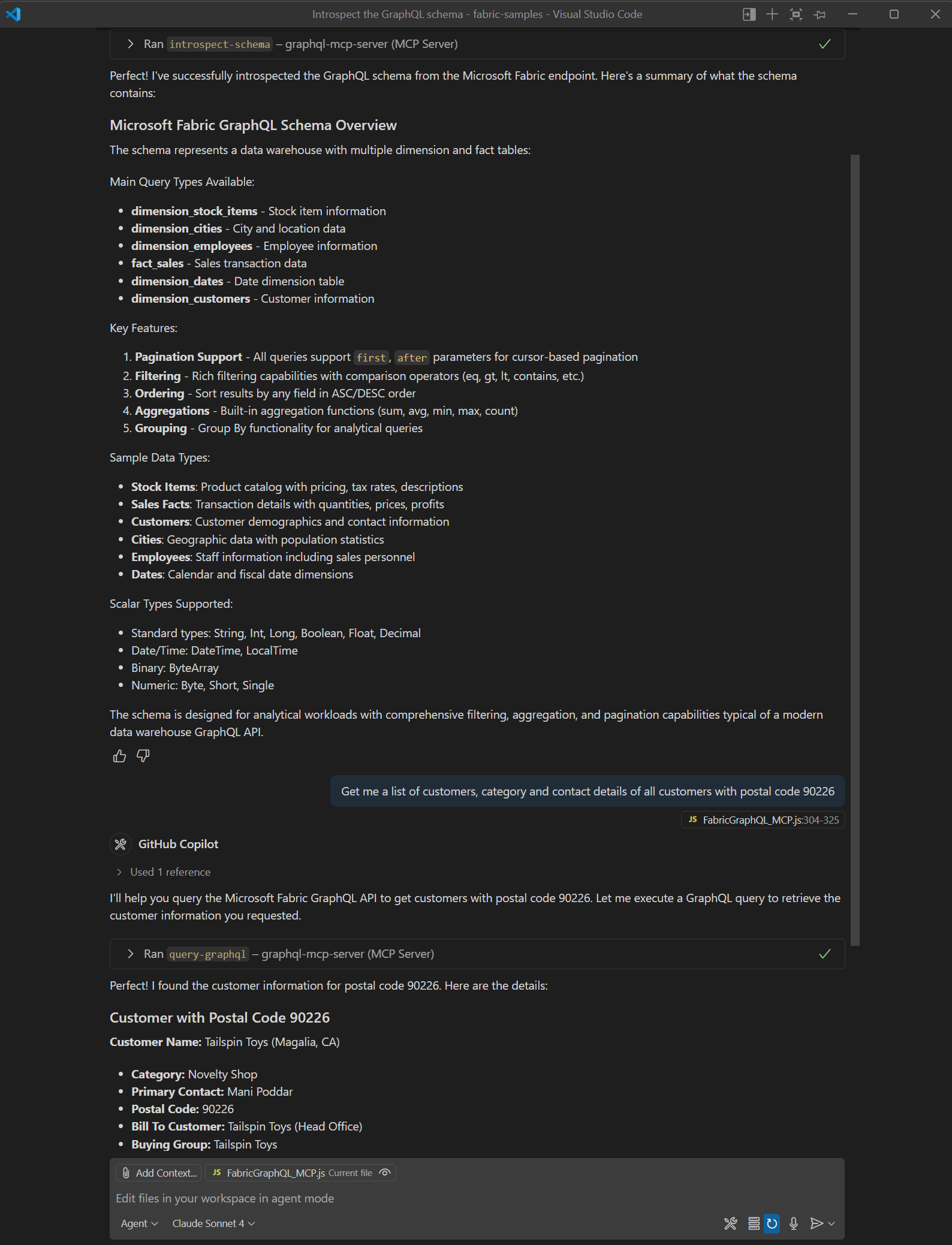
Cursor IDE
- Open Cursor settings
- Add the MCP server configuration:
{ "fabric-graphql": { "type": "http", "url": "http://localhost:3000/mcp" } } - In the chat, first ask to introspect the schema then try asking a pertinent question related to the introspected data in natural language.
What you built
Congratulations! You now have a working GraphQL MCP server that:
- Authenticates to Fabric using service principal credentials
- Exposes your Fabric data schema through introspection
- Translates AI agent requests into GraphQL queries
- Returns data in a format AI agents can understand and present
Your AI agents (like GitHub Copilot) can now:
- Automatically discover what data is available in your Fabric workspace
- Generate correct GraphQL queries based on natural language questions
- Retrieve and format results without you writing any query code
This local server is intended for development and learning. The following sections cover important considerations for production deployments and common troubleshooting scenarios.
Security considerations
While the local GraphQL MCP server should be implemented for development purposes only as described in this tutorial, it's implemented with HTTP transport, making it easier to use it as a starting point for more complex client-server or web based integrations. If you're deploying GraphQL MCP servers in production:
- Use Azure Key Vault for storing secrets instead of
.envfiles - Implement proper authorization, network security, and firewall rules
- Enable audit logging for all GraphQL queries
- Use Azure App Service or Container Instances for hosting
- Implement rate limiting and authentication for the MCP endpoints
- Regularly rotate client secrets and certificates
Troubleshooting
Common issues and solutions
Authentication errors
- Verify your Azure App Registration has the correct permissions
- Check that service principals are enabled in your Fabric tenant
- Ensure your client secret isn't expired
Schema introspection fails
- Confirm introspection is enabled in your GraphQL API settings
- Check that your GraphQL endpoint URL is correct
- Verify network connectivity to your Fabric workspace
AI agent doesn't recognize tools
- Restart your AI client after configuration changes
- Verify the MCP server URL is accessible
- Check server logs for any error messages
Query execution errors
- Review the server console for logged queries and errors
- Ensure your queries match the available schema
- Check that you have appropriate permissions for the requested data
Related content
- Model Context Protocol documentation
- GitHub repository with complete code samples
- Microsoft Fabric API for GraphQL overview
- Connect applications to Fabric API for GraphQL
- Create and add data to an API for GraphQL
- Microsoft Fabric API for GraphQL FAQ
- Integrate Azure API Management with Fabric API for GraphQL